A 2019 Raspberry Pi 4B Gets Ubuntu 26.04
A 2019 Raspberry Pi 4B Gets Ubuntu 26.04
I recently pulled out a Raspberry Pi 4B that I bought in 2019. It is the 4GB RAM version. I had used it for many experiments years ago, then it sat unused for a long time. This time, after powering it on again, I realized it is still quite useful for lightweight server-side programs. I also took notes on the OS reinstall and the small accessories I used.
Image And Flashing Tool
This time I did not install Raspberry Pi OS. I went straight to Ubuntu. The latest Raspberry Pi image I used was the Ubuntu 26.04 LTS Raspberry Pi Generic 64-bit ARM preinstalled desktop image, available from Canonical’s Raspberry Pi preinstalled image directory: Ubuntu 26.04 LTS Raspberry Pi image directory.
For flashing, the official Raspberry Pi Imager is enough: Raspberry Pi Imager.
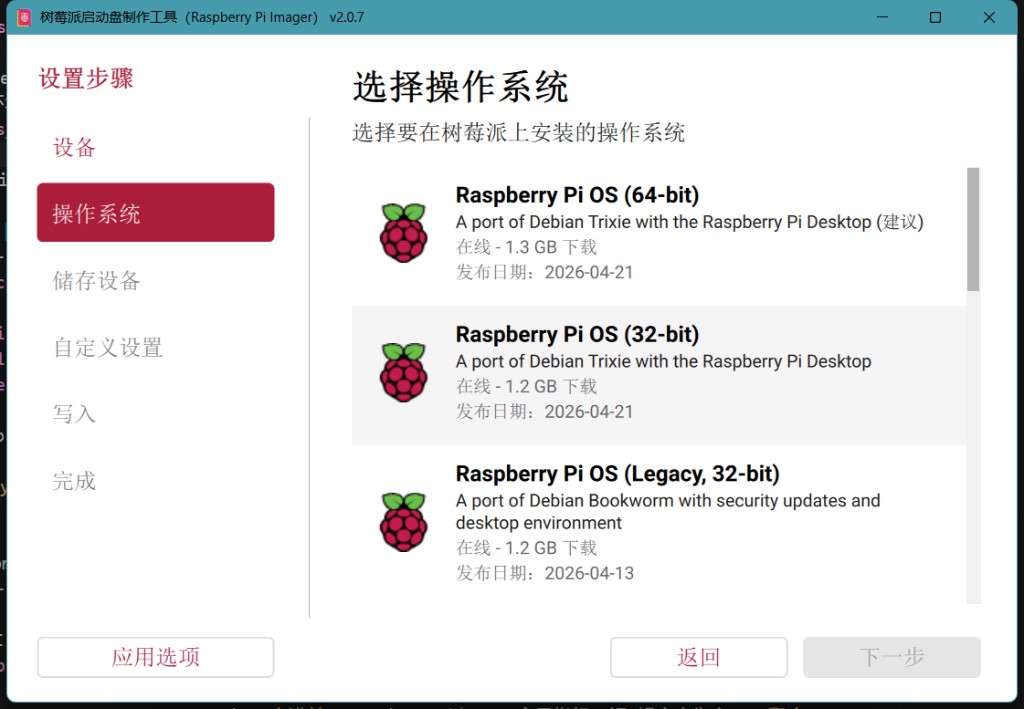
Ubuntu 26.04 LTS was released on April 23, 2026. It is the next long-term support release after 24.04 LTS. Standard support runs until April 2031, and Ubuntu Pro can extend that to 10 years. See the Ubuntu 26.04 LTS release notes and Canonical’s release announcement.
Why I Wanted 26.04 LTS
This release is more than “newer packages.” It ships with a newer kernel, desktop, graphics stack, and developer toolchain. For a small machine that is being brought back into service, these changes matter mainly because the default environment is more modern.
The practical points for me were:
- A newer Linux kernel and ARM64 support path.
- A newer GNOME desktop for initial setup, even if I later disable it.
- A newer graphics stack.
- Modern language tooling, including newer Python, GCC, Java, and Go versions.
I do not expect a Raspberry Pi 4B to suddenly become a workstation. The value is that the OS base is current enough to run modern tooling without too much friction.
The Old Raspberry Pi
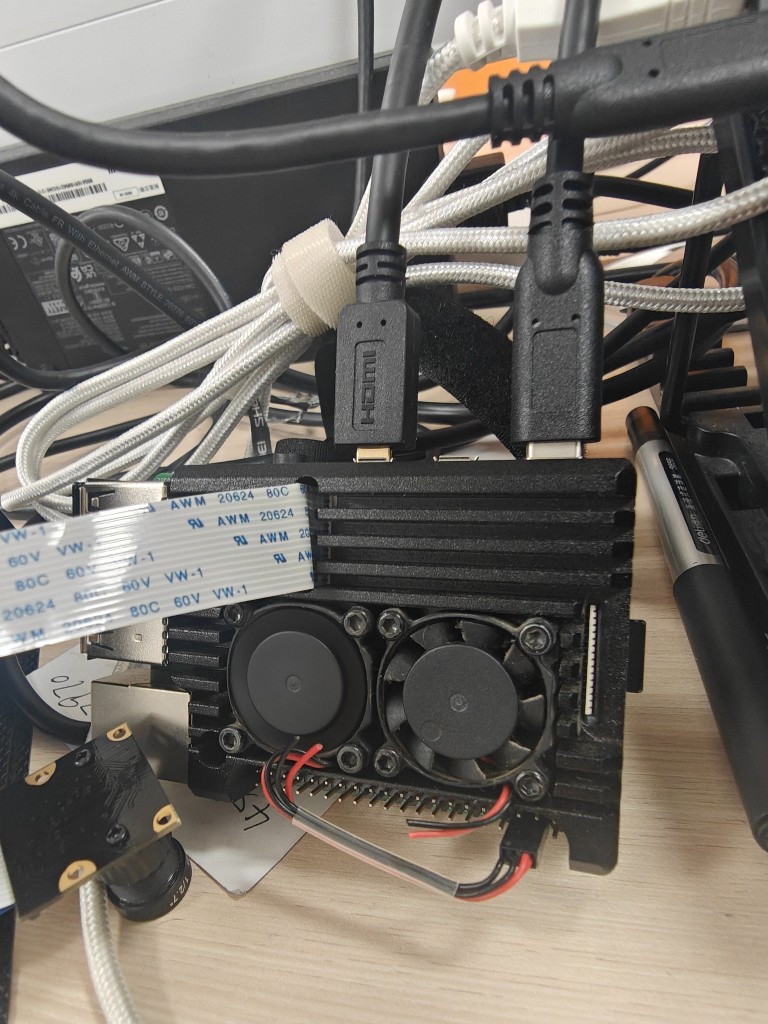
The machine is a Raspberry Pi 4B, 4GB RAM model from 2019. It is inside a cooling case with two small fans. One fan was painfully loud, so I simply disconnected it. There is also a camera module attached, though I have not tested it again yet.
The old 64GB SanDisk card looked like it died after one boot, so I replaced it with a 128GB SanDisk card. For Raspberry Pi devices that get reused and reinstalled over the years, storage cards really are consumables. Keeping a spare makes life much easier.
Two Surprisingly Useful Accessories
I added two small accessories this time: a mini keyboard and a portable monitor.
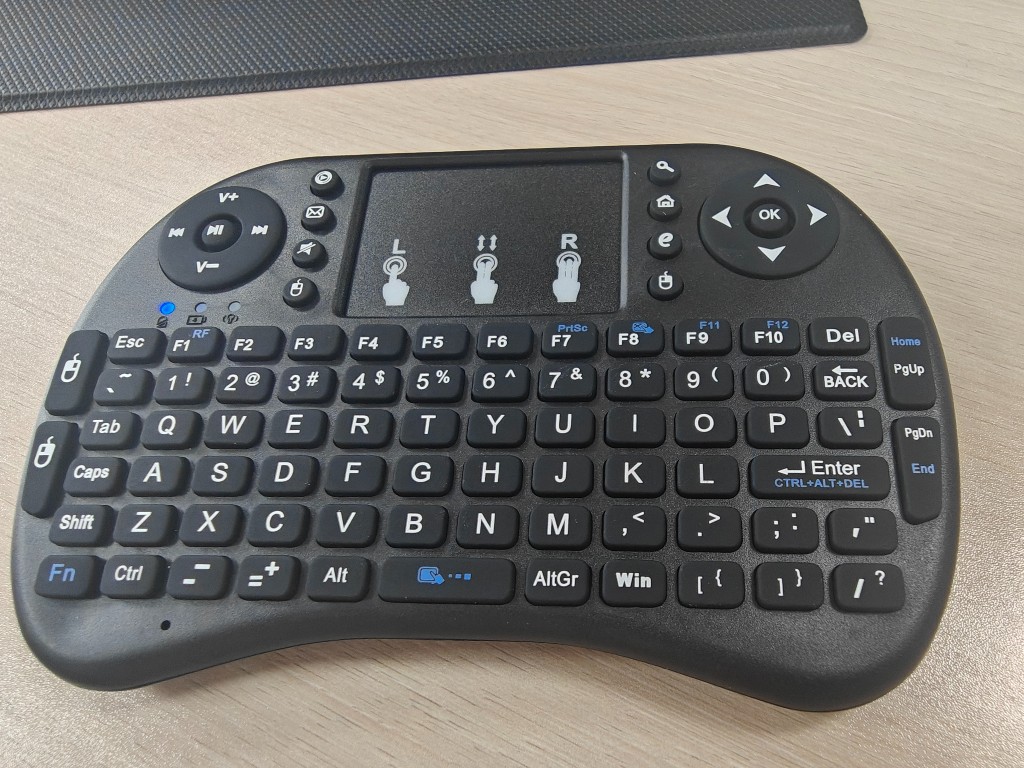
The mini keyboard was surprisingly good. It cost only 12.8 RMB. The receiver plugged into the Raspberry Pi and worked immediately. It is a physical keyboard and also includes a touchpad, so it can act as a mouse. For initial setup in Ubuntu Desktop, it was more than enough.
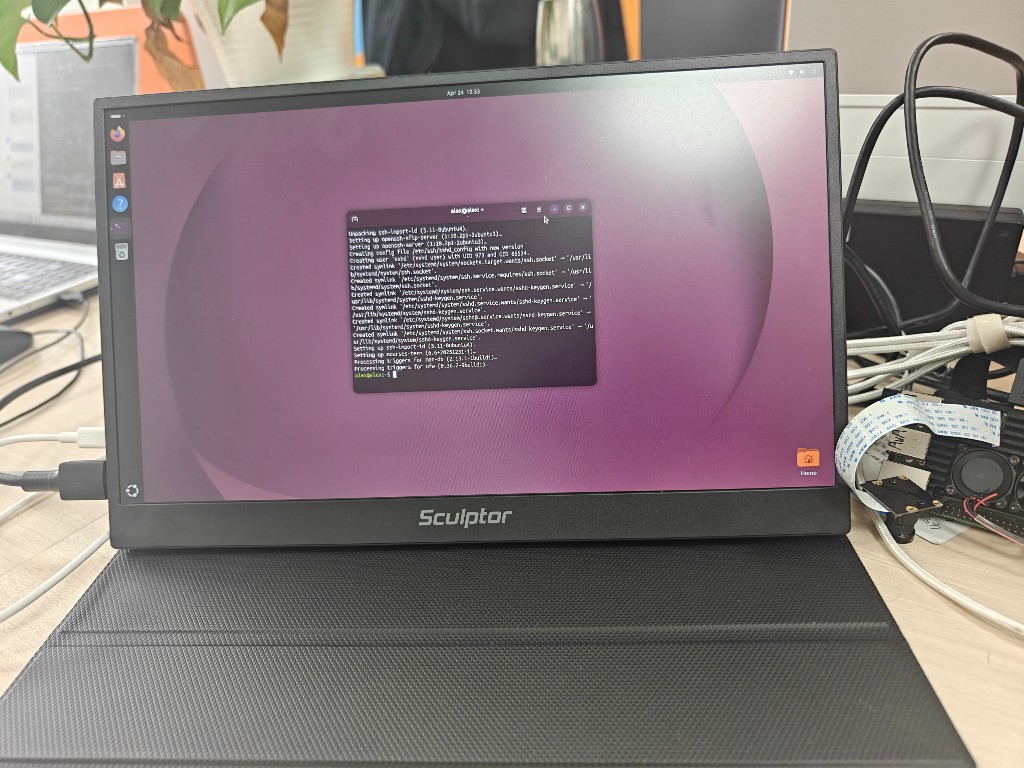
The portable monitor was also better than expected. Mine is a basic 15.6-inch model: 1920x1080, 60Hz, modest brightness, two speakers, two USB-C ports, and HDMI. It comes with a case that folds into a stand.
For this kind of device, the important part is convenience. USB-C can provide power or video input, and connecting a phone for display output also worked. For the Raspberry Pi, you still need a micro HDMI cable because the supplied HDMI cable has full-size connectors.
After using this setup, my old 3.5-inch Raspberry Pi screen suddenly felt very cramped.
First Boot
After flashing the image, I inserted the card and booted. The process was smooth. Wi-Fi worked, and after connecting to the network I installed a few language packages and entered the desktop without any unusual issues.
For occasional local initialization, this keyboard-plus-monitor combination is comfortable enough. After setup, it can naturally become a headless machine.
Basic Packages
A fresh system may not include all the small tools I use every day, so I first installed the basics:
sudo apt update
sudo apt install vim python3 python-is-python3 gcc
python-is-python3 makes python point to Python 3, which matches my usual habit. vim is still useful even for quick configuration edits. gcc saves trouble later when installing dependencies that need local compilation.
Ubuntu 26.04 also uses the newer DEB822-style APT source configuration by default in many installs, often under /etc/apt/sources.list.d/ubuntu.sources, rather than only the old one-line /etc/apt/sources.list format. If you want to change mirrors, first confirm which file the system is actually using and back it up. Do not blindly follow old tutorials that replace /etc/apt/sources.list.
Two Things To Do Immediately
After the system came up, I did two things right away: install sshd and disable the desktop for long-term use.
Install sshd
Ubuntu does not always include openssh-server by default:
sudo apt update
sudo apt install openssh-server
Then check the IP address:
ip addrOnce the IP is known, another machine can SSH into it directly.
Disable The Desktop
This device has only 4GB of RAM, and I plan to use it mainly for server-side programs. There is little reason to keep a desktop running all the time.
On this machine, the default display manager behavior can be controlled through:
/etc/X11/default-display-managerIf it contains:
/usr/sbin/gdmthe system enters the graphical desktop.
If changed to:
falseit boots into the console. That is how I configured it for long-term use.
For Now
This note only records the first round: flashing, booting, accessories, basic packages, SSH, and disabling the desktop. I may later test the camera module, run lightweight services, check long-term stability, and look for a quieter cooling solution.
Bringing old hardware back is not always nostalgia. Sometimes it is simply still useful. As long as it boots and the network works, a Raspberry Pi can still do plenty of small jobs.
Follow ZiCode on WeChat
If this post was useful, you can follow later updates on WeChat as well.

X / Twitter
Follow @ax2_zicode
Faster technical notes, short thoughts, and new-post alerts are posted on X.