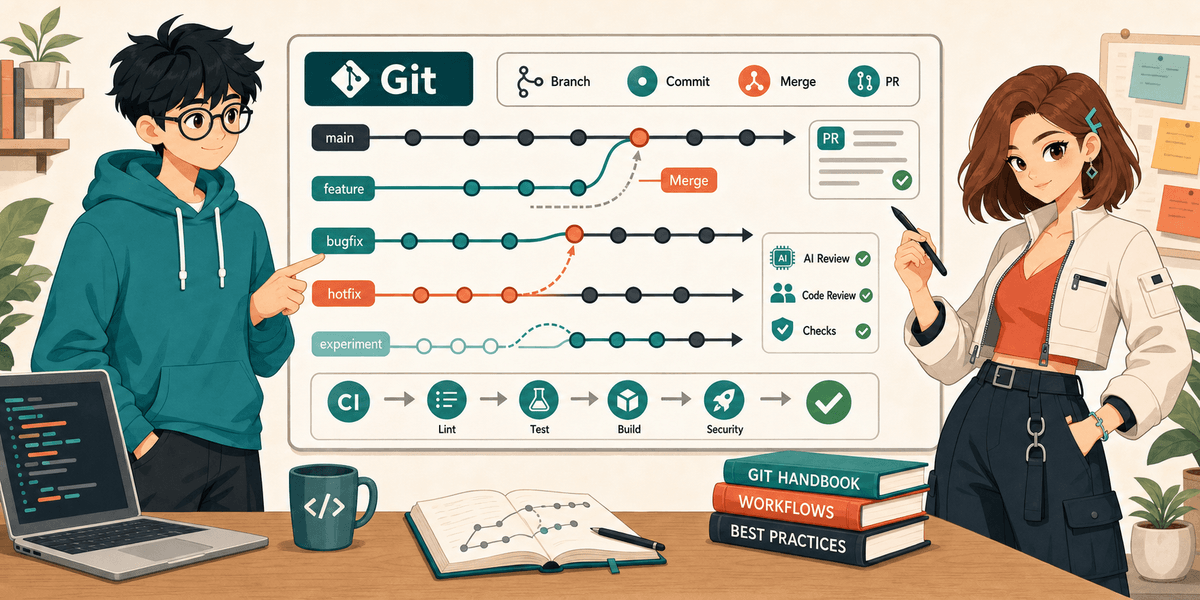
Git Essentials Handbook for Developers
Git is not just a tool for saving code. It is the audit trail of software work: what changed, why it changed, who reviewed it, how it shipped, and how it can be rolled back.
This is not a full Git textbook. It is a practical handbook you can keep nearby. The goal is simple: know the commands that are enough for daily work, understand the collaboration layer, and use Git as a safety net when AI agents start changing code faster than humans can read it.
What Git Solves
Before version control, the simplest “system” was copying folders: project-final, project-final2, project-final-really-final. That keeps snapshots, but it cannot answer:
- Who changed this line?
- Why was it changed?
- How do two people merge changes to the same file?
Centralized version control put the repository on a server. That helped teams collaborate, but the server remained the center. Git changed the model. Every developer has a full local history, can commit offline, create cheap branches, inspect history, and sync later.
Git was created in 2005 by Linus Torvalds for Linux kernel development after the kernel community needed a fast, distributed, branch-friendly system. That origin explains Git’s personality: powerful, fast, low-level, and sometimes unfriendly until the model clicks.
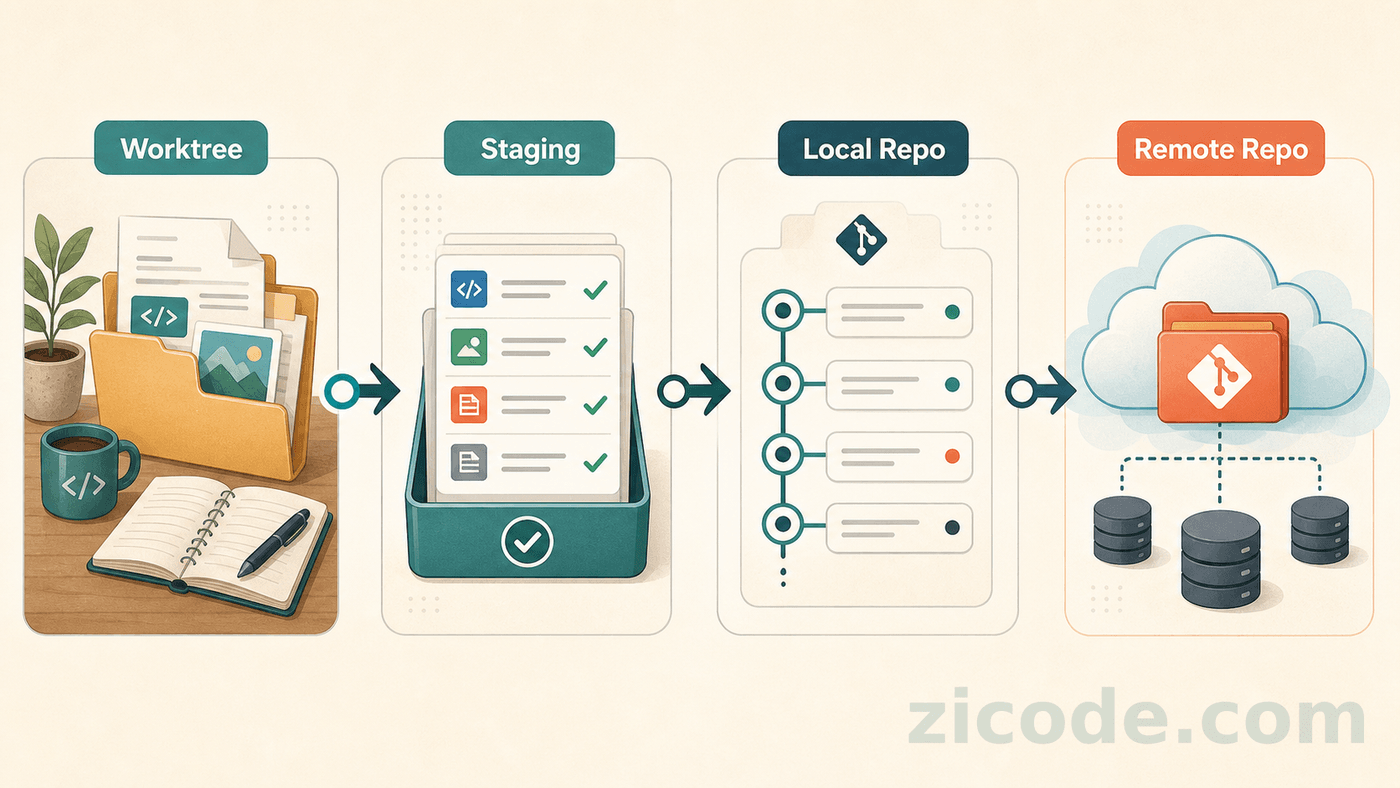
Git Mental Model: Four Areas
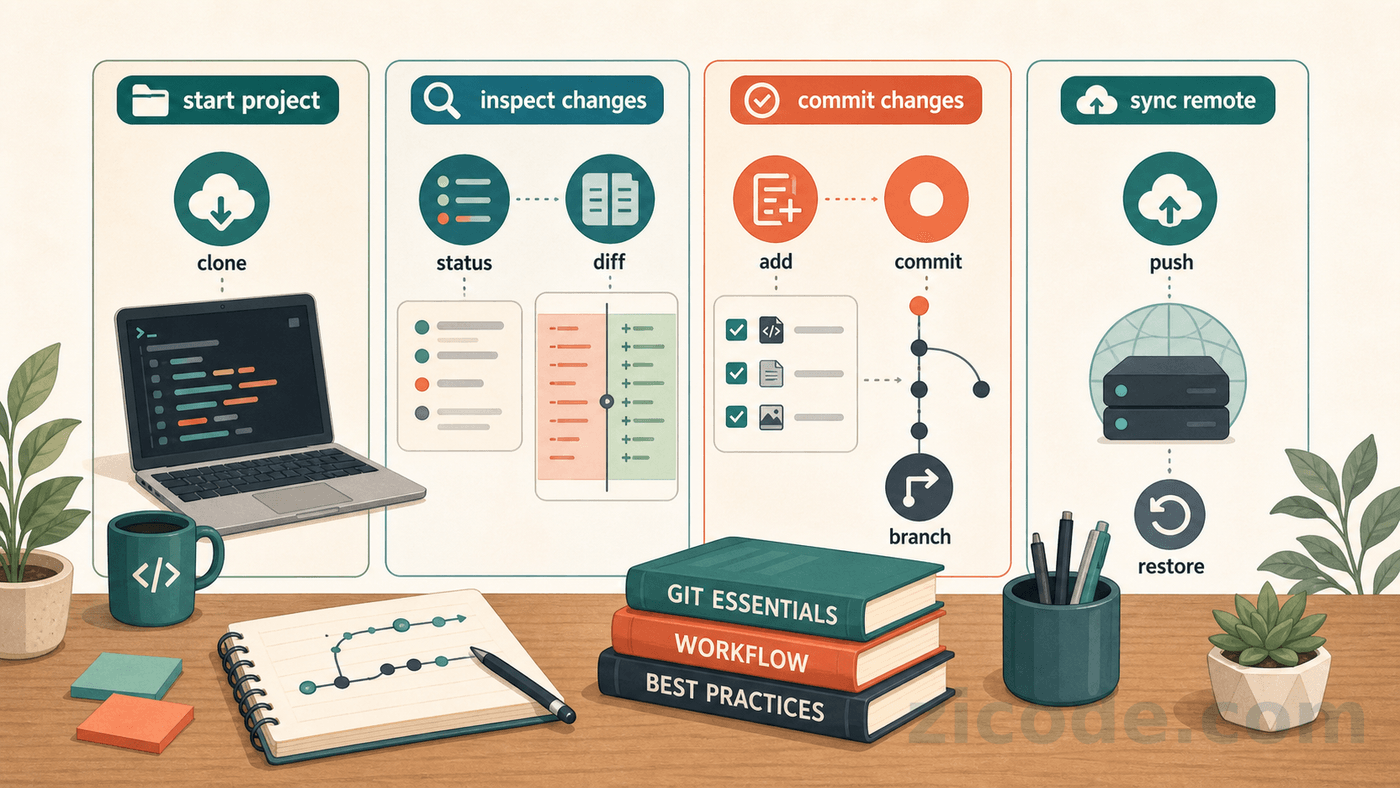
Remember these four areas first. Most Git commands move changes from one area to another.
| Area | Meaning | Typical action |
|---|---|---|
| Worktree | Files you are editing | edit, delete, create |
| Staging area | What the next commit will include | git add |
| Local repository | Committed history on your machine | git commit, git log |
| Remote repository | Shared history for the team | git push, git pull |
Worktree: Where You Edit
The worktree is the project directory you are editing. New files, changed files, and deleted files all appear here first.
Use two commands to stay oriented:
git statusshows which files changed.git diffshows the actual changes.
Worktree changes are not history yet. They are only your current working state.
Staging Area: The Next Commit List
The staging area is the list of changes that will go into the next commit. git add moves selected changes from the worktree into that list.
This is what lets you create clean commits:
- Use
git add -pwhen one file contains multiple logical changes. - Split code, docs, and formatting into separate commits.
- When AI changes many files, stage only the part you have reviewed.
Local Repository: Your Committed History
The local repository stores the full commit history on your machine. After git commit, a change becomes a traceable record.
Many operations are local and offline:
git logto inspect history.git switchto move between branches.git revertorgit restoreto recover.git rebase -ito clean up unpublished commits.
Before pushing, local commits are usually still your own workspace and can be cleaned up carefully.
Remote Repository: Shared Team History
The remote repository is the shared place for collaboration, such as GitHub, GitLab, or Gitea. After git push, teammates can see your commits. After git fetch or git pull, you can see theirs.
Once history is shared, it no longer belongs only to you:
- Avoid force-pushing public branches.
- Avoid rewriting commits other people depend on.
- Use PRs, CI, and reviews to make changes inspectable.
Most Git confusion comes from mixing these areas. A file in the worktree is not a commit. A staged file is not yet history. A local commit is not visible to teammates until it is pushed.
Essential Commands
These commands are enough to work alone on most projects.
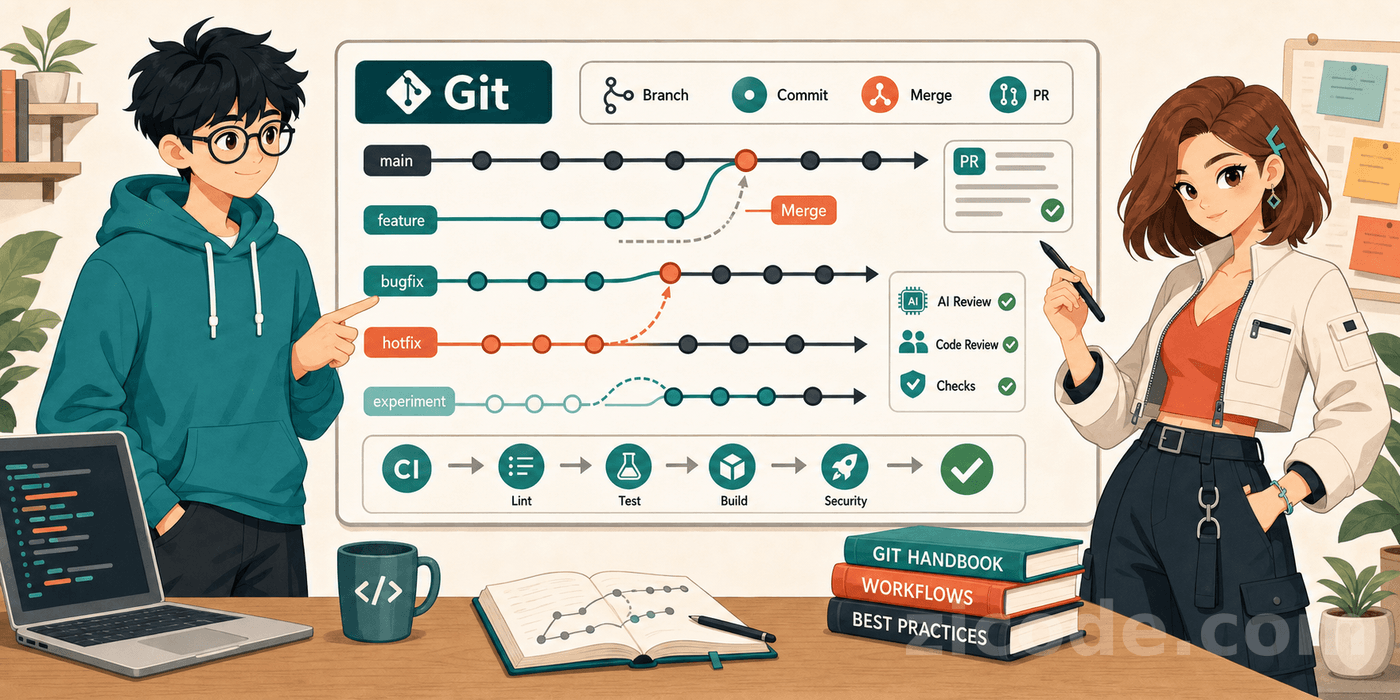
Daily Solo Workflow
| Scenario | Command |
|---|---|
| Clone a project | git clone <url> |
| Create a repository | git init |
| Inspect remotes | git remote -v |
| Check status | git status |
| See unstaged changes | git diff |
| See staged changes | git diff --staged |
| Stage a file | git add <file> |
| Stage by hunk | git add -p |
| Commit | git commit -m "type(scope): message" |
| List branches | git branch |
| Switch branch | git switch <branch> |
| Create branch | git switch -c <branch> |
| Fetch remote history | git fetch |
| Pull and integrate | git pull |
| Push | git push |
| Discard a file change | git restore <file> |
| Unstage a file | git restore --staged <file> |
The daily habit is more important than the table: check status, inspect diff, stage only what belongs together, commit one intent at a time, then push.
Collaboration Commands
Working with other people adds remote state, conflicts, pull requests, and branch hygiene.
Remote State And Shared Branches
| Command | Use |
|---|---|
git branch -vv | See which remote branch each local branch tracks |
git remote show origin | Inspect the remote setup |
git fetch --prune | Fetch and remove stale remote references |
git stash push -m "message" | Save unfinished work temporarily |
git stash pop | Restore and remove the latest stash |
git cherry-pick <commit> | Move one commit onto the current branch |
git revert <commit> | Create a new commit that undoes a public commit |
Conflicts are not a failure. They mean two changes touched the same area. Resolve them deliberately: inspect git status, edit the conflict markers, run tests, stage the fixed files, then continue the merge or rebase.
Conflict Handling
When a conflict appears, do not treat it as a broken repository. It is only Git asking you to decide how two edits should be combined.
Advanced Commands
Advanced Git should make work safer, not more theatrical.
Smaller Commits And History Inspection
Use git add -p when one file contains multiple logical changes. Use git blame to find context, not to assign blame. Use git log -p <file> when a file’s history matters. Use git bisect when you know a bug appeared somewhere between a good commit and a bad commit.
Two history-editing commands are worth knowing:
| Command | When to use |
|---|---|
git commit --amend | Fix the latest local commit |
git rebase -i HEAD~N | Clean up recent local commits before sharing |
The rule is simple: local history can be cleaned up; shared history should be treated as public infrastructure.
Local History Cleanup
Use history cleanup only before other people depend on your branch. After a branch is shared, prefer adding a new corrective commit.
Branching Models
There is no single correct branching model. The right choice depends on team size, release frequency, CI quality, and risk tolerance.
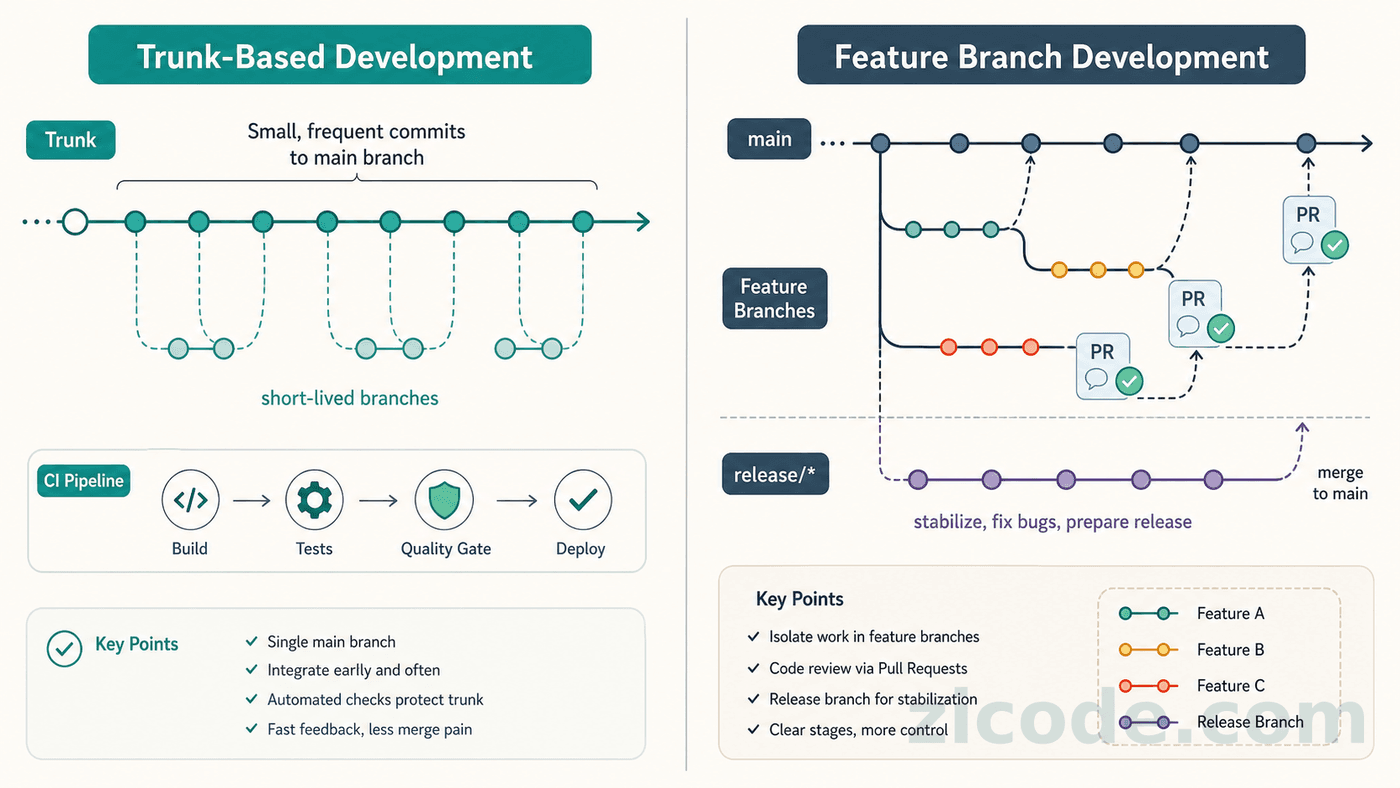
Trunk-Based Development
Trunk-based development keeps branches short and integrates small changes frequently. It works well when CI is strong and the team can use feature flags.
Feature Branch Development
Feature branch development gives every change a branch and usually a pull request. It is easier to review and easier to isolate unfinished work, but long-lived branches create painful merges.
For most teams, a pragmatic middle ground works well: short-lived feature branches, small PRs, required CI, and fast review.
Merge Or Rebase
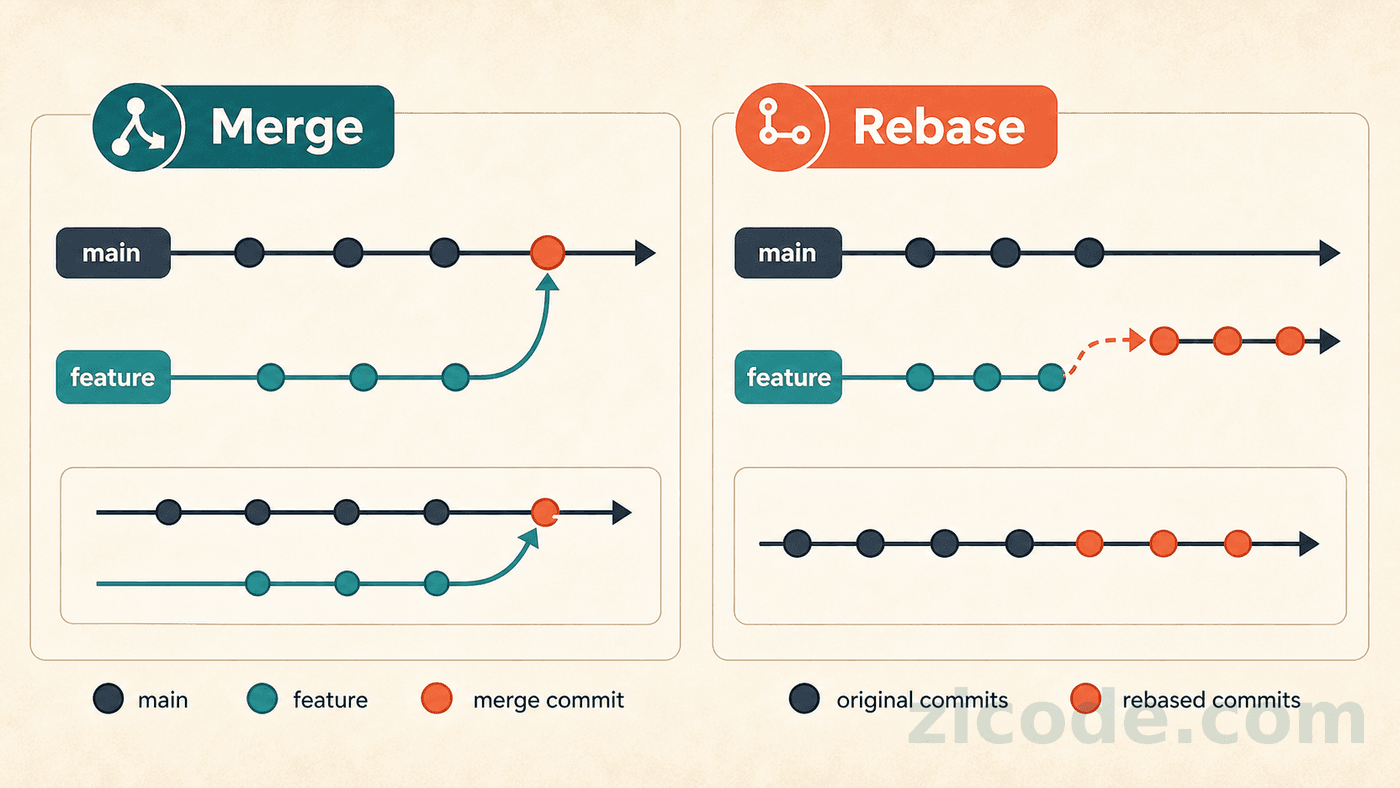
Merge and rebase are not moral choices. They optimize for different histories.
Merge Keeps The Branch Boundary
merge preserves the fact that a branch existed and creates a merge commit. It is good for public branches, PR boundaries, release branches, and situations where historical context matters.
Rebase Makes History Linear
rebase replays your commits on top of another base, producing a straighter history. It is useful for cleaning up your own local work before sharing.
Practical Choice
| Scenario | Prefer |
|---|---|
| Local unpublished branch | Rebase is fine |
| Shared branch | Avoid rewriting history |
| PR boundary matters | Merge commit |
| Team requires linear history | Squash or rebase merge |
| Undo a public change | Revert |
The gh Command Line
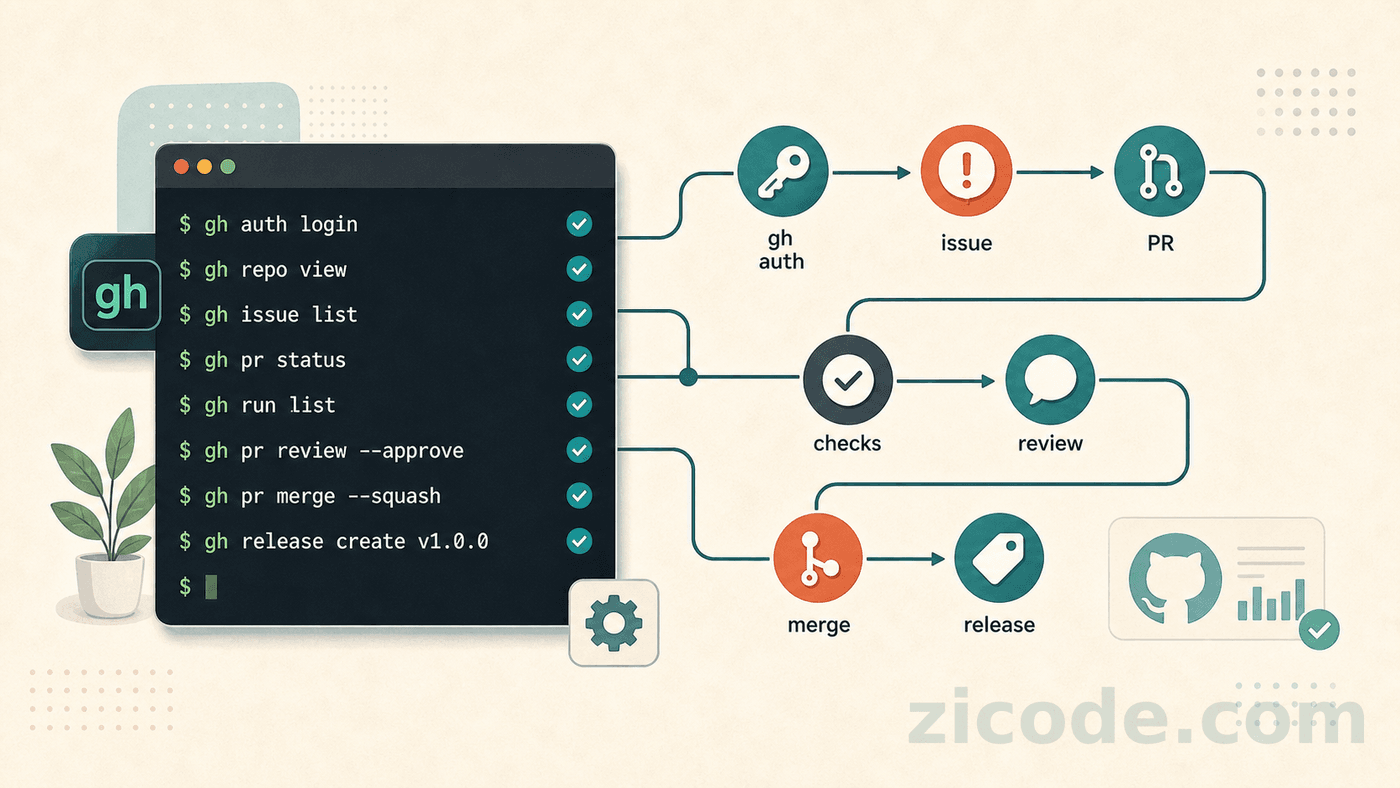
Git handles repository history. gh handles GitHub collaboration objects: issues, pull requests, checks, reviews, releases.
Common Commands
| Command | Use |
|---|---|
gh auth login | Log in |
gh issue list | List issues |
gh issue view 123 | Inspect one issue |
gh pr create | Create a pull request |
gh pr view --web | Open a PR in the browser |
gh pr checks | Inspect CI checks |
gh pr checkout 123 | Check out a PR locally |
gh pr review | Review from the terminal |
gh pr merge | Merge a PR |
The value of gh is scriptability. Status checks, daily reports, issue triage, and PR summaries all become easier when browser actions have command-line equivalents.
Why It Helps AI-Assisted Work
In AI-assisted coding, gh is a clean way to bring GitHub context into the local workflow: issue text, PR comments, failed checks, review decisions, and release state can all be fetched without manually copying browser pages.
Automation Workflows
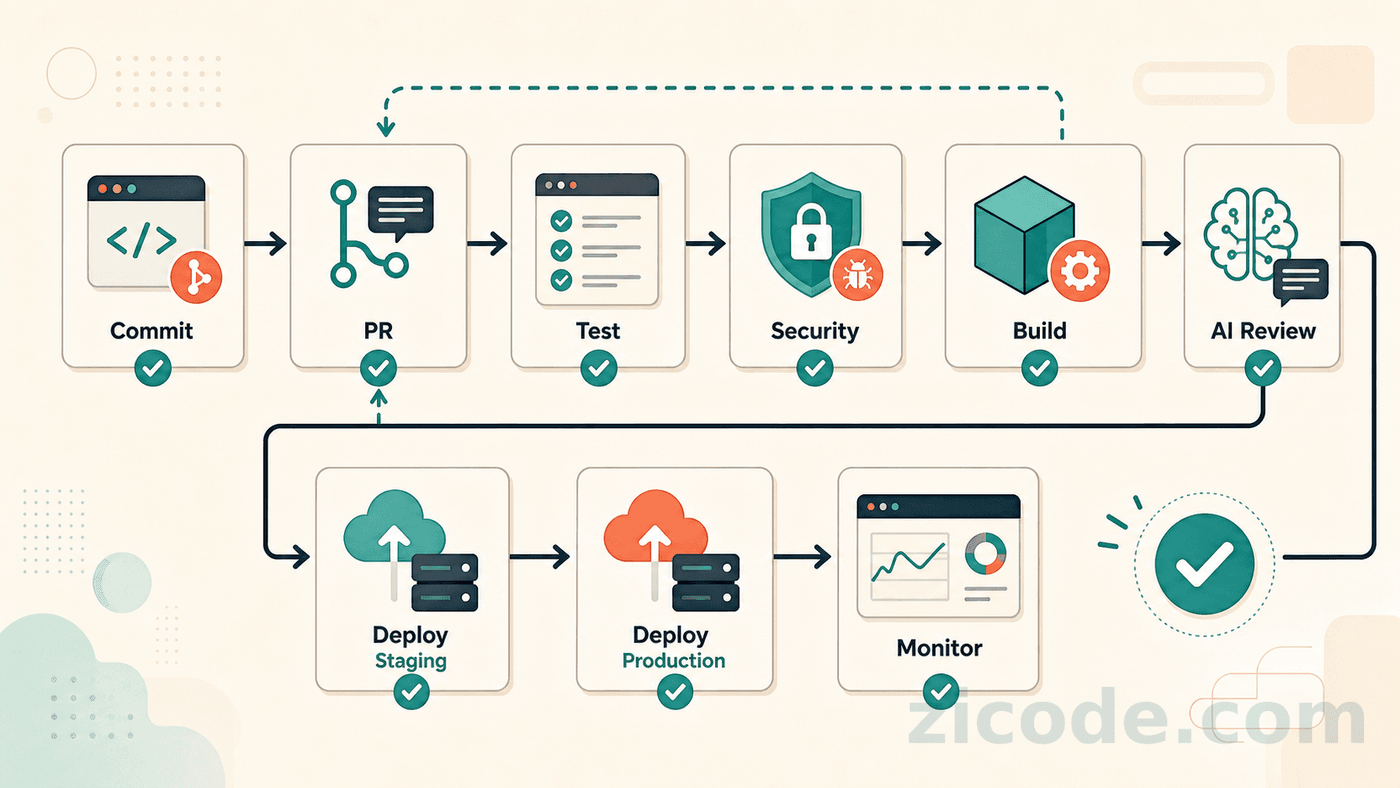
Git-triggered workflows can do much more than “run tests”.
Common Automation Scenarios
Common scenarios:
- Run unit, integration, and end-to-end tests on every PR.
- Run lint, format checks, type checks, and coverage reports.
- Scan dependencies, secrets, licenses, and large files.
- Build static sites, Docker images, packages, and release artifacts.
- Deploy staging or production.
- Run smoke tests after deployment.
- Generate changelogs and release notes.
- Notify Slack, Feishu, email, or issue trackers.
- Run AI review and summarize likely risks.
Good automation moves repetitive checks to machines and leaves judgment to humans.
What To Automate First
Start with checks that prevent real mistakes: tests, linting, secret scanning, build verification, and deployment smoke tests.
Templates And Rules
Templates reduce guessing.
Useful Templates
Useful templates:
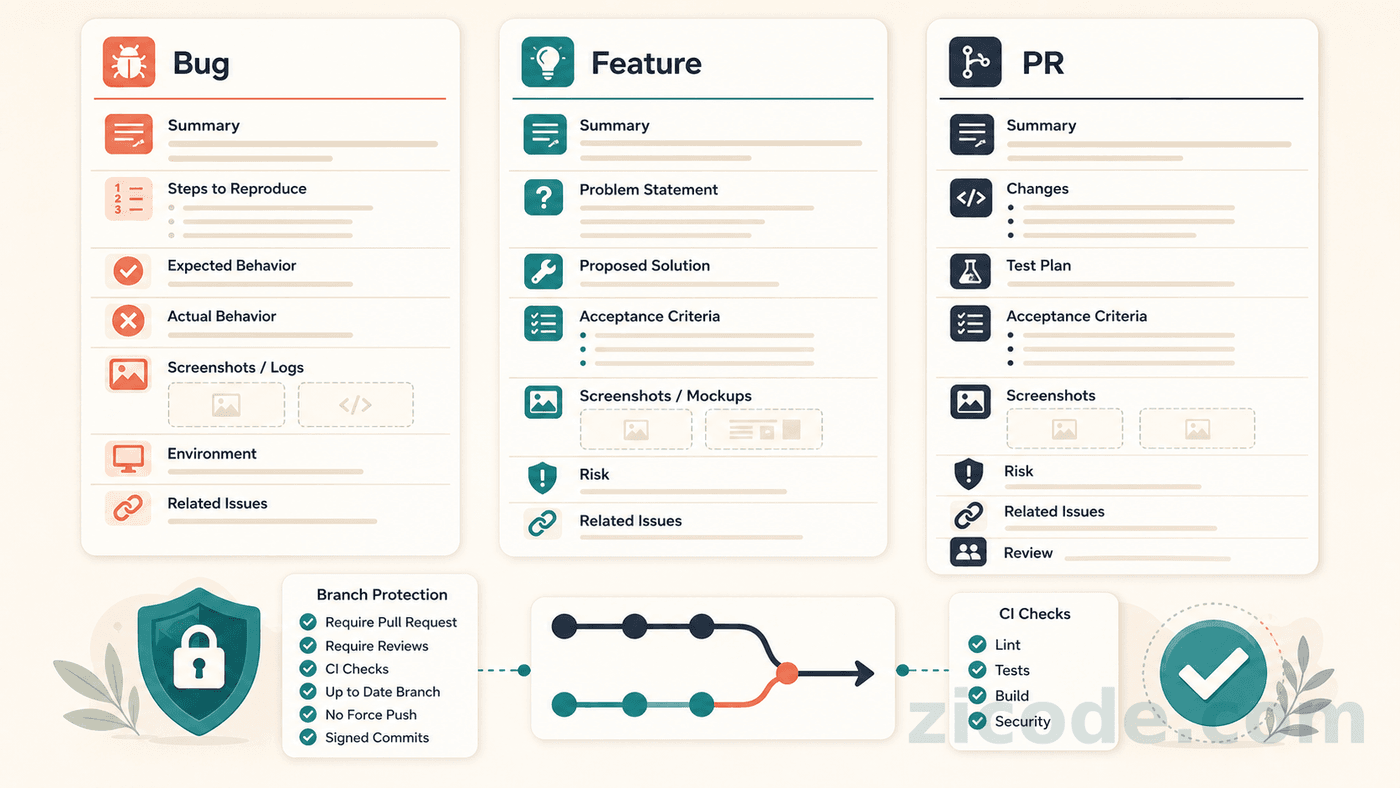
- Bug report: actual behavior, expected behavior, reproduction steps, environment, logs.
- Feature request: context, goal, non-goals, acceptance criteria.
- Technical task: scope, plan, risks, tests.
- Pull request: summary, test plan, risk, rollback, screenshots, related issues.
Branch protection can require CI, approvals, resolved review conversations, linear history, signed commits, or specific merge strategies. Start with the checks that prevent real mistakes, then tighten gradually.
Branch Protection
Use branch rules to protect the paths that matter most: main, release branches, and production deployment branches.
GUI Tools
Command line Git is precise and scriptable. GUI tools are better for visual history, large diffs, and conflict resolution.
Good options include VS Code Source Control, GitHub Desktop, Fork, GitKraken, Sourcetree, and JetBrains IDE integration. Using a GUI is not a weakness. The important part is knowing what Git operation each button performs.
Anti-Patterns
What To Avoid
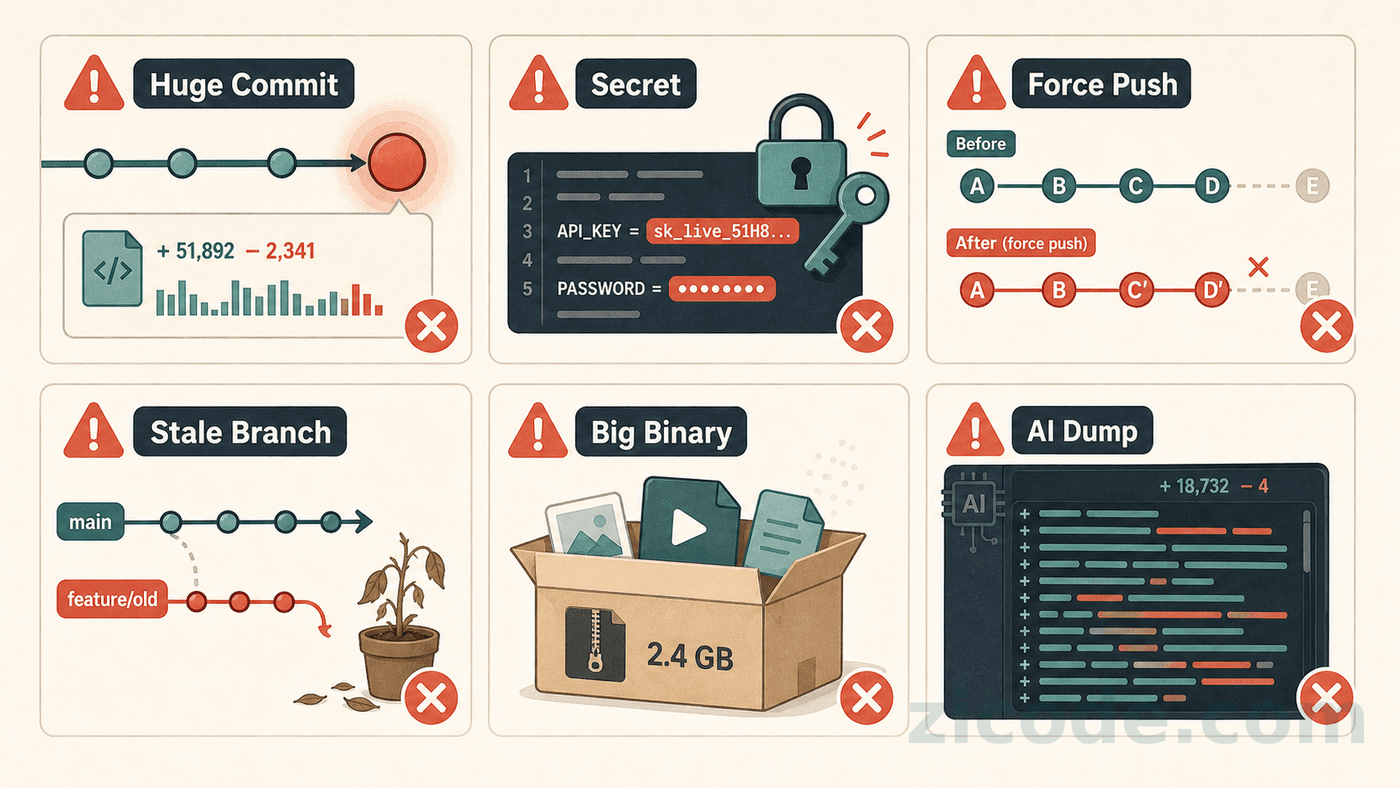
Avoid these:
- Huge commits that mix feature work, formatting, config, and documentation.
- Secrets committed to history.
- Force pushing public branches.
- Long-lived branches that never sync with main.
- Large binaries, model files, videos, and archives in normal Git history.
- AI-generated changes committed as one giant unreviewable batch.
The fix is boring but effective: small branches, small commits, clear messages, frequent sync, automated checks, and deliberate review.
Better Habits
Most Git problems become smaller when the team keeps commits narrow, reviews small, and public history stable.
Git In The AI Coding Era
AI coding makes code generation faster. It also makes mistakes spread faster. Git becomes more important, not less.
Better AI-Era Habits
Better AI-era habits:
- Give every substantial AI task its own branch.
- Ask for smaller changes, then review each diff.
- Commit checkpoints frequently.
- Run tests before accepting the next step.
- Keep unrelated formatting out of logic commits.
- Let AI draft PR summaries, but have a human confirm them.
- Use revertable commits as rollback points.
The core rule is unchanged: Git history should explain the work. AI can help write code, but Git should still make every step inspectable.
Keep Rollback Points
When an AI task touches many files, commit reviewed checkpoints instead of saving one large unreviewable batch.
Daily Reference
| Scenario | Command |
|---|---|
| Current state | git status |
| Unstaged diff | git diff |
| Staged diff | git diff --staged |
| Stage file | git add <file> |
| Stage by hunk | git add -p |
| Commit | git commit -m "type(scope): message" |
| New branch | git switch -c <branch> |
| Switch branch | git switch <branch> |
| Fetch and prune | git fetch --prune |
| Pull | git pull |
| Push | git push |
| First push | git push -u origin <branch> |
| Discard file changes | git restore <file> |
| Unstage file | git restore --staged <file> |
| Temporary save | git stash push -m "message" |
| Restore stash | git stash pop |
| Move one commit | git cherry-pick <commit> |
| Undo public commit | git revert <commit> |
| Clean local history | git rebase -i HEAD~N |
| History graph | git log --oneline --graph --decorate --all |
Git becomes useful when it stops interrupting you and quietly records a safe, reviewable, recoverable path through the work.
Follow ZiCode on WeChat
If this post was useful, you can follow later updates on WeChat as well.

X / Twitter
Follow @ax2_zicode
Faster technical notes, short thoughts, and new-post alerts are posted on X.