Using WSL as Your Main Development Machine: Where Files and Tools Should Live
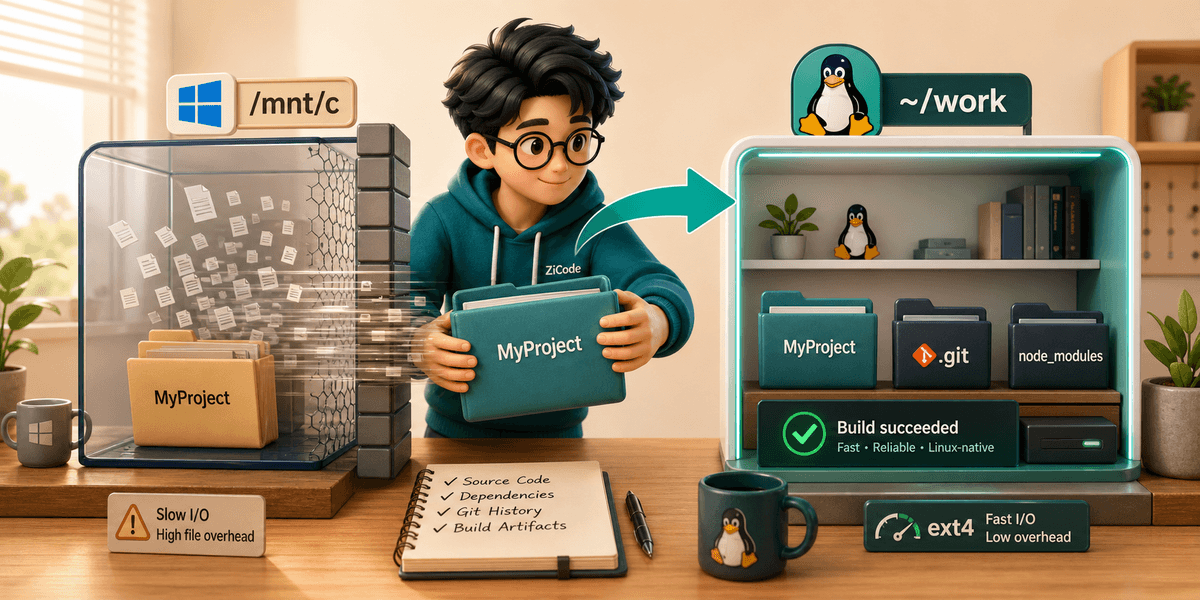
I have seen many WSL setups where the problem was not installing Ubuntu or configuring VS Code. The problem was that the project lived in the wrong place.
Many people start by keeping code in D:\work\project, then enter /mnt/d/work/project from WSL. That feels natural: Windows can see it, File Explorer can open it, and backup tools already know the drive. But once the project grows, git status slows down, npm install slows down, test startup slows down, and even file watching in the editor becomes less reliable.
This article focuses on one question: if WSL is your daily development machine, where should files live, where should tools run, and when should you cross the Windows/Linux boundary?
I will use a mixed project as the example: Python backend, Node frontend, tens of thousands of small files, and a daily workflow involving git, uv, npm, pytest, and vite. This is not an extreme project, but it exposes the boundary cost clearly.
The Short Rule: Keep Busy Tools Close to Their Files
WSL2 has two common kinds of paths.
Windows filesystem paths mounted into WSL:
/mnt/c/Users/alex/work/api
/mnt/d/work/api
Linux distribution filesystem paths:
/home/alex/work/api
~/work/api
Microsoft’s WSL filesystem documentation gives a plain but important recommendation: if you work from the Linux command line, put project files directly in the WSL Linux filesystem for better performance. If you mainly use Windows tools, keep them in the Windows filesystem. This simple rule is the dividing line for many WSL performance problems.
My version is shorter:
Put code on the side that reads and writes it most often.
If your main tools are git, npm, uv, pytest, make, grep, and rg, and they all run in Linux, put the project under ~/work. If the project mainly uses Visual Studio, native Windows compilers, or Windows database tools, the Windows partition may be fine. Do not put a high-frequency Linux workflow under /mnt/c just because File Explorer can see it easily.
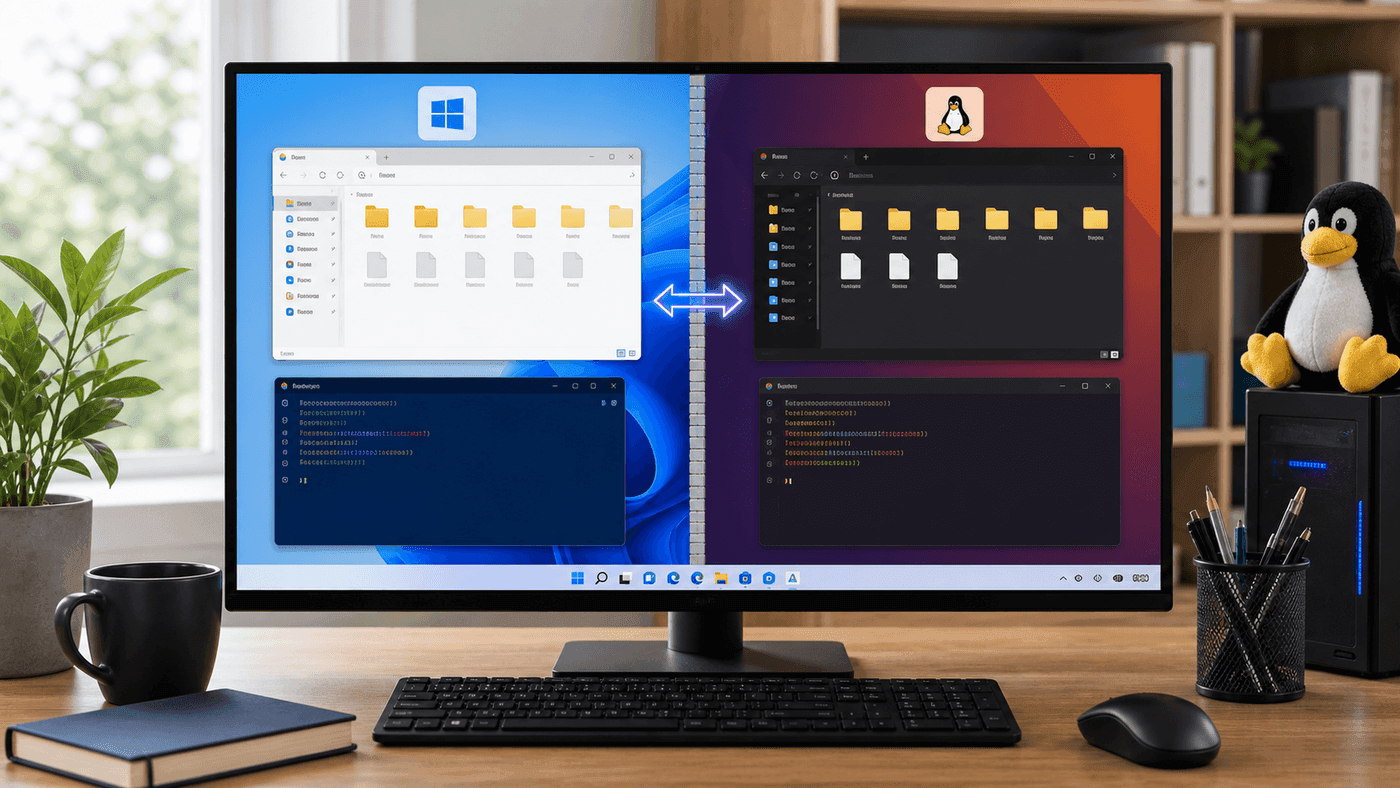
Think of the boundary as a thin wall. Crossing it occasionally to pick up a file is fine. If your build tool crosses it thousands of times per second, the wall becomes a bottleneck.
This is not a religious issue. It is a latency issue.
A web project contains many small files: node_modules, .git/objects, test caches, build caches, type definitions, and lock files. Every stat, open, close, and write may cross the Windows/WSL filesystem boundary. One operation is invisible. Tens of thousands add up.
A Slow Scenario You Can Reproduce
If you are not sure whether your project is affected, place the same repository in two locations:
mkdir -p ~/bench
cd ~/bench
git clone https://github.com/some-org/some-project.git linux-copy

mkdir -p /mnt/d/bench
cd /mnt/d/bench
git clone https://github.com/some-org/some-project.git windows-copy
Do not choose a tiny repository. Use the project you actually work on, or at least a repository with thousands of files, dependencies, and tests.
Run:
cd ~/bench/linux-copy
time git status
time rg "TODO" .
time npm ci
time npm test -- --runInBand
Then run the same commands from the Windows-mounted copy:
cd /mnt/d/bench/windows-copy
time git status
time rg "TODO" .
time npm ci
time npm test -- --runInBand
Do not over-interpret one run. Antivirus software, disks, CPU power mode, and cache state all influence the numbers. What matters is the relative difference on the same machine, same project, and same commands.
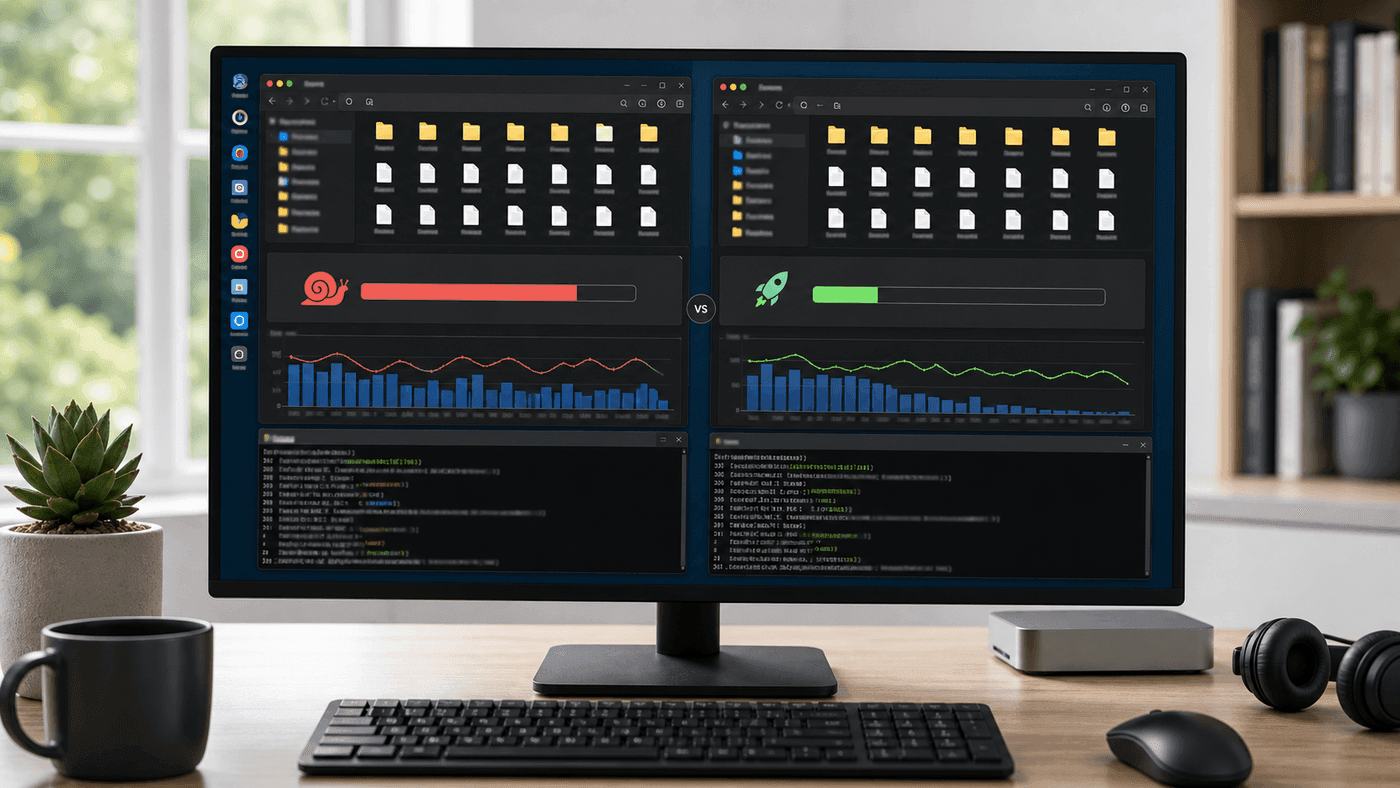
The gap usually does not show up when copying one large file. It shows up in .git, node_modules, cache directories, and test temp files: large numbers of small metadata operations.
I also like to run a small-file stress test:
cat > /tmp/wsl-file-bench.sh <<'SH'
set -euo pipefail
target="${1:?target dir}"
rm -rf "$target/wsl-bench"
mkdir -p "$target/wsl-bench"

start=$(date +%s%3N)
for i in $(seq 1 8000); do
  printf 'hello %s\n' "$i" > "$target/wsl-bench/file-$i.txt"
done
find "$target/wsl-bench" -type f -print0 | xargs -0 cat >/dev/null
rm -rf "$target/wsl-bench"
end=$(date +%s%3N)

echo "$target $((end - start)) ms"
SH

bash /tmp/wsl-file-bench.sh ~/work
bash /tmp/wsl-file-bench.sh /mnt/d/work
This script is not your real workload, but it exposes the boundary cost quickly. Many complaints that “WSL is slow” are really cases where Linux tools are repeatedly working on the Windows filesystem.
Migrate the Project Cleanly
If the project does not have much local state, the cleanest migration is a fresh clone:
mkdir -p ~/work
cd ~/work
git clone git@github.com:your-org/your-project.git
cd your-project
Then reinstall dependencies inside WSL:
uv sync
npm ci
This is more reliable than copying node_modules from a Windows directory. node_modules may contain platform-specific binaries, and Python virtual environments contain interpreter paths. Directly moving them often leaves hidden problems.
If you have uncommitted files in the old Windows directory, inspect them first:
cd /mnt/d/work/your-project
git status --short
Commit what can be committed. For local files that must be carried over, use rsync for source and configuration only, excluding dependency and build directories:
rsync -av \
  --exclude node_modules \
  --exclude .venv \
  --exclude .next \
  --exclude dist \
  --exclude build \
  /mnt/d/work/your-project/ \
  ~/work/your-project/
After migration, run the basic checks in the new directory:
cd ~/work/your-project
git status --short
uv run pytest
npm test
Do not skip this. Environment migration is dangerous precisely because things can look fine for a few days before a generated directory, symlink, or local config turns out to be missing.
How VS Code Should Open It
I do not usually open \\wsl.localhost\Ubuntu\home\alex\work\project directly from Windows VS Code. It works, but it can put extensions, file watching, and terminal context into a half-Windows, half-Linux state.
The steadier path is Remote - WSL:
cd ~/work/your-project
code .
The lower-left corner of VS Code should show that it is connected to WSL. Terminal, extensions, and language servers run on the Linux side. When you save a file, it writes to the Linux filesystem. When you run pytest, it reads the same files.
If you need to view the directory from Windows File Explorer, do not move the project back to a Windows partition. From WSL, run:
explorer.exe .It opens the current Linux directory in File Explorer. For dragging one file, viewing an image, or sharing a build artifact, this is enough. Do not make Linux tools live permanently under /mnt/d.

I prefer to treat Windows as the desktop and device layer, and WSL as the project runtime. The editor can display on Windows, but its remote process, terminal, language server, and tests should stay in WSL.
Path Conversion: Ask the System
There are a few WSL tools worth remembering.
Linux path to Windows path:
wslpath -w ~/work/your-projectExample output:
\\wsl.localhost\Ubuntu\home\alex\work\your-projectWindows path to Linux path:
wslpath -u 'D:\work\your-project'Output:
/mnt/d/work/your-projectStarting Windows programs from WSL:
explorer.exe .
notepad.exe README.md
powershell.exe -NoProfile -Command "Get-ChildItem"
Running WSL commands from Windows:
wsl.exe -d Ubuntu -- bash -lc "cd ~/work/your-project && git status --short"These bridges are useful, but I treat them as bridges, not roads. A bridge is for crossing a river, not for building an office on top of it.
.wslconfig Is Not Performance Magic
When WSL feels slow, many people immediately tune memory and CPU. That is not useless, but it comes after file placement.
The global config lives in .wslconfig under the Windows user directory:
[wsl2]
memory=16GB
processors=8
swap=8GB
After changing it:
wsl --shutdownThen reopen WSL.
This kind of setting helps with “not enough memory during build”, “parallel compilation uses too much CPU”, or “swap is hurting disk performance”. It does not remove the boundary cost of small-file operations under /mnt/c. If the project location is wrong, move the project first; tune resources later.
Single-distribution settings live in /etc/wsl.conf. For example:
[boot]
systemd=true

[interop]
enabled=true
appendWindowsPath=false

[automount]
enabled=true
options=metadata,umask=22,fmask=11
I use appendWindowsPath=false carefully. It reduces PATH pollution and avoids accidentally calling Windows node.exe or python.exe, but it also makes some cross-system conveniences less smooth. In a team, document the choice instead of letting everyone improvise.
What Should Stay on Windows
Not everything belongs in WSL.
Good candidates for Windows:
- Office documents, design files, screenshots, temporary downloads;
- projects mainly handled by native Windows tools;
- files that must be managed by Windows backup or sync tools;
- games, media, and large non-development assets.
Good candidates for WSL:
- source code primarily handled by Linux toolchains;
- high-frequency directories such as
node_modules,.venv,.pytest_cache, and.next; - service code frequently accessed by Docker bind mounts;
- repositories that rely heavily on
git,rg,find, andmake.
One boundary is easy to get wrong: database data directories.
If PostgreSQL, MySQL, or Redis runs inside WSL or Docker’s Linux environment, do not put the data directory under /mnt/c. Databases care about fsync, locks, permissions, case sensitivity, and rename semantics. It may appear to work in development, but once it breaks, debugging is ugly.
A Team Directory Convention
Personal machines can be flexible. Teams benefit from consistent paths.
I would recommend:
~/work/company/
  product-api/
  product-web/
  scripts/

~/tmp/
  scratch/
  downloaded-artifacts/

~/data/
  local-postgres/
  local-minio/
Then write project README commands as Linux paths:
cd ~/work/company/product-api
uv sync
uv run pytest
When Windows needs to open the directory, use:
explorer.exe .If someone insists on entering from File Explorer, point them to:
\\wsl.localhost\Ubuntu\home\<user>\work\company\product-apinot a copied D:\work project.
Post-migration Checklist
After moving a project, I check:
pwd
mount | head
git status --short
git config --show-origin core.autocrlf
which node
which python
which uv
which npm
Three things matter most.
First, pwd should not be under /mnt/c or /mnt/d.
Second, which node and which python should not point to Windows paths. If you see /mnt/c/Program Files/nodejs/node.exe, PATH leaked across the boundary.
Third, line-ending rules should be stable. In cross-Windows/Linux development, core.autocrlf and .gitattributes should be fixed by the project, not left to personal global settings.
A common .gitattributes looks like this:
* text=auto eol=lf

*.bat text eol=crlf
*.cmd text eol=crlf
*.ps1 text eol=crlf
This is not unique to WSL, but WSL amplifies it: the same repository may be touched by both Windows and Linux tools, so line endings and permission bits can become meaningless diffs.
My Current Boundary
My daily boundary is simple:
Code, dependencies, tests, and builds stay in WSL.
Browsers, chat tools, Office, and image editing usually stay on Windows.
When I need to share a file, I open it from WSL with explorer.exe ..
When I need a temporary Windows command, I call powershell.exe or a specific .exe.
For long-running services, I try to keep each service self-contained on one side, instead of putting data in Windows, processes in Linux, and configuration in a third place.
The most comfortable use of WSL is not turning Windows into Linux, nor treating Linux as a toy embedded in Windows. It is a development workbench: Linux owns the engineering toolchain; Windows owns the desktop and ecosystem; the two are connected through a few explicit boundaries.
Once files are in the right place, many problems disappear. git status stops feeling broken. npm ci stops feeling like it is copying sand one grain at a time. Tests stop producing strange issues from file watching or path conversion. More importantly, team documentation gets simpler: enter WSL, cd ~/work/project, run the command. You no longer have to explain why one person’s /mnt/d is slower than another person’s /home.
References
- Working across Windows and Linux file systems - Microsoft Learn
- Set up a WSL development environment - Microsoft Learn
- Comparing WSL Versions - Microsoft Learn
- Advanced settings configuration in WSL - Microsoft Learn
Follow ZiCode on WeChat
If this post was useful, you can follow later updates on WeChat as well.

X / Twitter
Follow @ax2_zicode
Faster technical notes, short thoughts, and new-post alerts are posted on X.

More in this column
- AI Development in WSL: GPU, CUDA, Model Caches, and File IO
- WSL Disk Space Cleanup: VHDX, Docker, Model Caches, and What Actually Frees Space
- Docker in WSL: The Slow Part Is Usually the Mount Boundary
- WSL Is Not Just a Virtual Machine
- Developing Linux GUI Apps in WSL: From Script Windows to Maintainable Tools