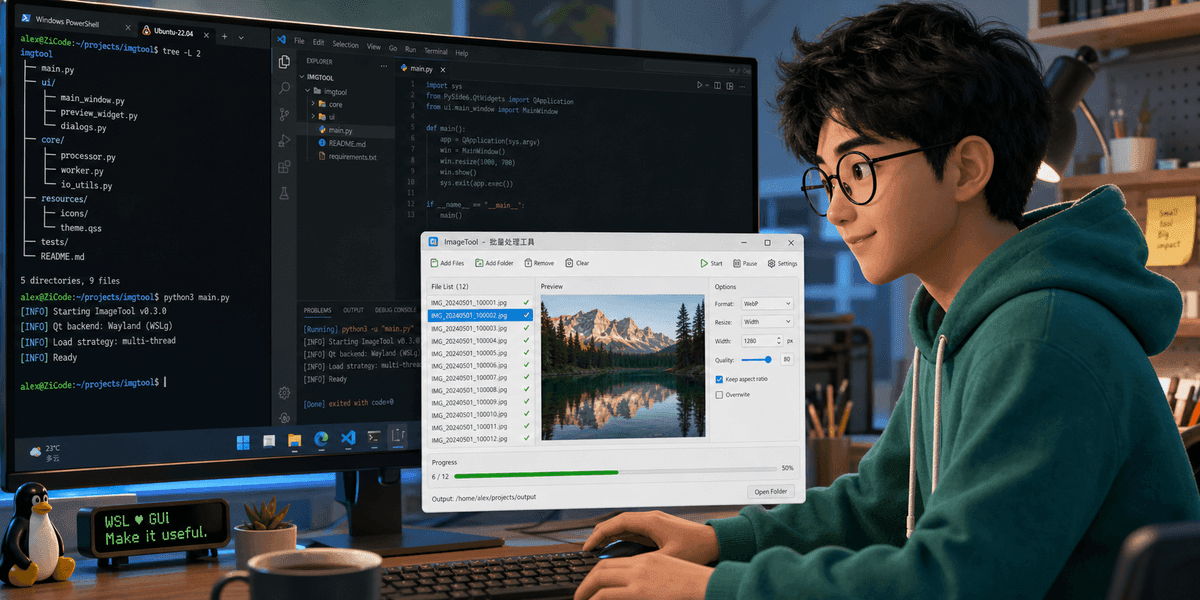
Developing Linux GUI Apps in WSL: From Script Windows to Maintainable Tools
Developing Linux GUI programs on Windows used to feel heavy. You either started a virtual machine, configured an X Server, or gave up on the interface and wrote a command-line tool.
WSLg makes this ordinary. Start a Qt, GTK, or OpenCV window inside WSL, and it appears on the Windows desktop like a normal application. You can Alt+Tab, copy and paste, and place it next to your browser and editor.
That does not mean WSL is the right publishing target for every desktop application. It is, however, very good for a specific category: small tools for yourself or an engineering team.
This article follows a reproducible small utility: choose an image directory, generate thumbnails and compressed versions, and preview the result. It can start as a shell plus Python script, then grow into a small GUI.
Verify the GUI Path Before Installing Frameworks
Microsoft’s WSL GUI documentation states that WSL can run X11 and Wayland Linux GUI applications on Windows and integrate them with the Windows desktop. The WSLg project has the same goal: integrated Linux GUI apps on Windows.
Before writing an app, do a minimal test:
sudo apt update
sudo apt install -y x11-apps
xeyes
Then test an image window:
sudo apt install -y feh
feh sample.png
If these do not appear, do not blame Qt or GTK yet. Update WSL first:
wsl --update
wsl --shutdown
Enter Ubuntu again and retry.
Check environment variables:
echo "$DISPLAY"
echo "$WAYLAND_DISPLAY"
ls -la /mnt/wslg
The point is to prove that the WSLg base path works before introducing an application framework.
Keep the First Requirement Small
The tool is called thumb-lab, and the goal is small:
- choose an image directory;
- show the number of images;
- generate thumbnails with width 640;
- open the output directory when done;
- show an error message on failure.
Start with a command-line version:
mkdir -p ~/work/thumb-lab
cd ~/work/thumb-lab
python3 -m venv .venv
source .venv/bin/activate
python -m pip install pillowthumb.py:
from pathlib import Path
from PIL import Image
import sys

src = Path(sys.argv[1]).expanduser().resolve()
out = Path(sys.argv[2]).expanduser().resolve()
out.mkdir(parents=True, exist_ok=True)

for path in src.glob("*"):
    if path.suffix.lower() not in {".jpg", ".jpeg", ".png", ".webp"}:
        continue
    img = Image.open(path)
    img.thumbnail((640, 640))
    img.save(out / f"{path.stem}.jpg", quality=88)

print(out)
Run:
python thumb.py ~/Pictures/raw ~/Pictures/thumbs
explorer.exe "$(wslpath -w ~/Pictures/thumbs)"
Make the core logic a pure function or CLI script first. That is the basis for a maintainable GUI. Do not put image-processing logic directly inside button callbacks.
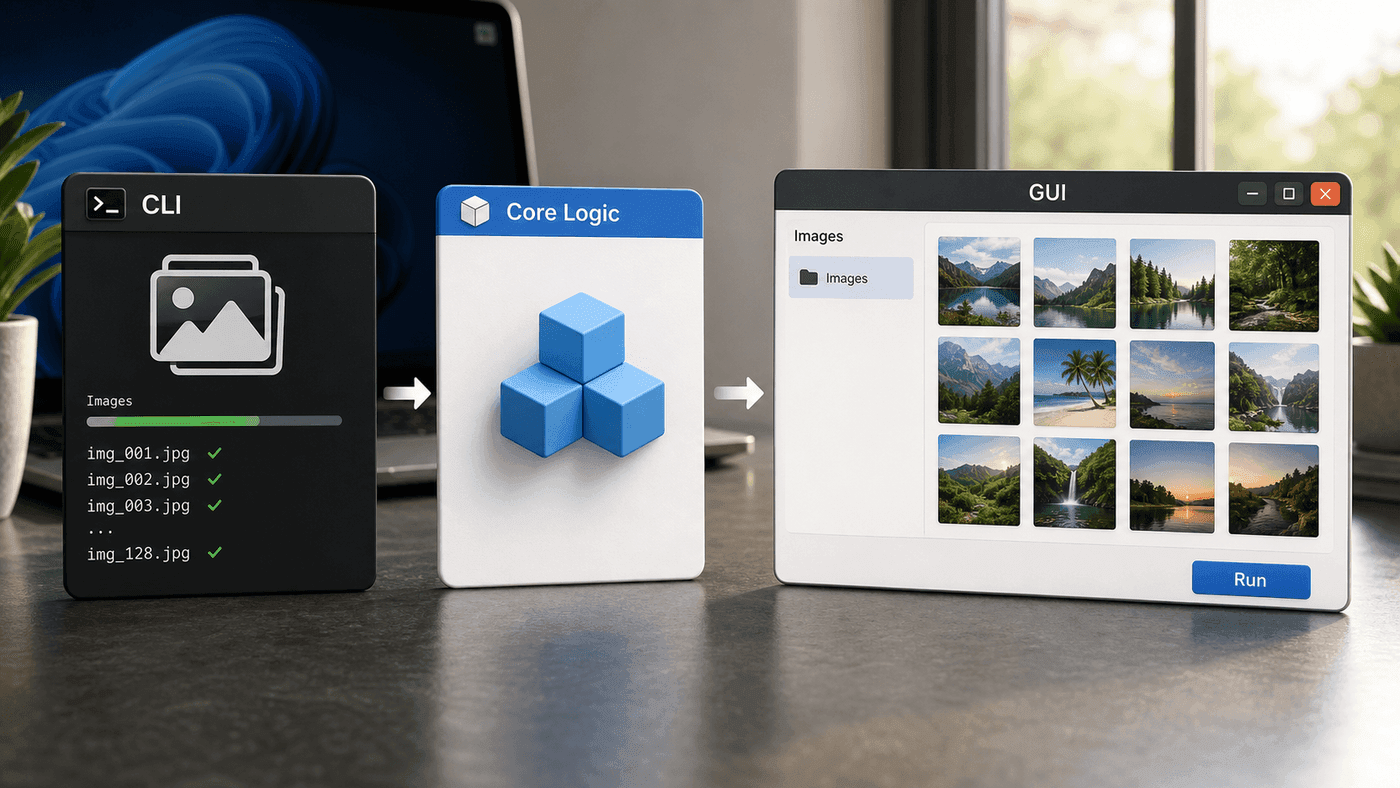
I prefer CLI first, GUI second. The CLI version can quickly validate input, output, error handling, and performance in the terminal. The GUI only selects files, displays progress, and triggers work. If you later need a Web version, batch version, or scheduled job, the core does not need to be rewritten.
A Minimal PySide6 Window
Qt for Python documentation describes PySide6 as the official Python bindings for Qt6. It is suitable for slightly richer desktop tools: buttons, lists, tables, progress bars, file selection, and previews.
Install:
source .venv/bin/activate
python -m pip install PySide6 pillowapp.py:
from pathlib import Path
import subprocess
import sys

from PIL import Image
from PySide6.QtWidgets import (
    QApplication,
    QFileDialog,
    QLabel,
    QPushButton,
    QVBoxLayout,
    QWidget,
)


def make_thumbnails(src: Path, out: Path) -> int:
    out.mkdir(parents=True, exist_ok=True)
    count = 0
    for path in src.glob("*"):
        if path.suffix.lower() not in {".jpg", ".jpeg", ".png", ".webp"}:
            continue
        img = Image.open(path)
        img.thumbnail((640, 640))
        img.convert("RGB").save(out / f"{path.stem}.jpg", quality=88)
        count += 1
    return count


class ThumbLab(QWidget):
    def __init__(self):
        super().__init__()
        self.setWindowTitle("Thumb Lab")
        self.resize(420, 180)

        self.status = QLabel("Choose an image directory")
        self.pick_button = QPushButton("Choose directory and generate thumbnails")
        self.pick_button.clicked.connect(self.pick_and_run)

        layout = QVBoxLayout()
        layout.addWidget(self.status)
        layout.addWidget(self.pick_button)
        self.setLayout(layout)

    def pick_and_run(self):
        directory = QFileDialog.getExistingDirectory(self, "Choose image directory")
        if not directory:
            return

        src = Path(directory)
        out = src / "_thumbs"
        try:
            count = make_thumbnails(src, out)
        except Exception as exc:
            self.status.setText(f"Failed: {exc}")
            return

        self.status.setText(f"Done: generated {count} thumbnails at {out}")
        subprocess.run(["explorer.exe", str(out)], check=False)


app = QApplication(sys.argv)
window = ThumbLab()
window.show()
sys.exit(app.exec())
Run:
python app.pyThe window appears on the Windows desktop. If the selected directory is inside the WSL filesystem, processing is steadier. If it is under /mnt/c/Users/..., it still works, but reading many files crosses the boundary.
Do Not Block the GUI Thread
The code above has an obvious problem: when many images are processed, the window freezes. For a tiny tool this may be acceptable, but once work takes more than a few seconds, move it to a worker thread.
In Qt, QThread is the normal tool. The structure matters more than the exact code here:
UI thread:
  - respond to buttons
  - update status
  - show progress

Worker thread:
  - scan files
  - read images
  - generate thumbnails
  - emit progress signals
This is the biggest difference between GUI programs and command-line scripts. A CLI script can block. A blocked window makes users think the program has died.
If the tool is only for one-off internal use, the synchronous version may be enough. Once colleagues use it, progress bars, cancel buttons, and error messages are not decoration.
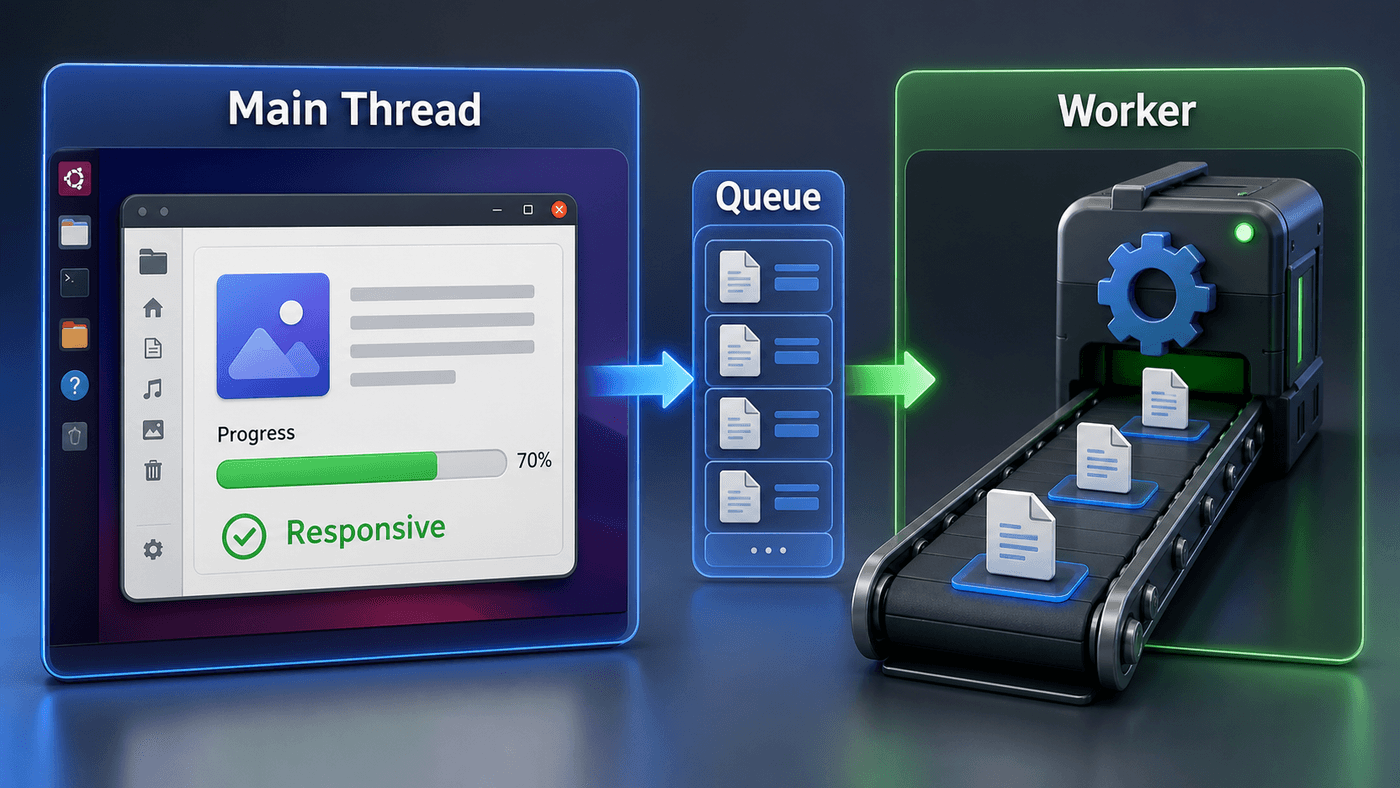
This model fits most internal GUI tools: the main thread handles window events and lightweight state; the worker performs slow tasks; progress flows through signals or a queue. Do not make button callbacks scan directories, compress images, or call models directly.
GTK Fits More Linux-flavored Tools
If you prefer the GNOME/Linux ecosystem, look at PyGObject. GTK’s Python binding documentation covers GTK, GStreamer, WebKitGTK, GLib, GIO, and related libraries.
Install GTK4 packages in Ubuntu:
sudo apt install -y python3-gi gir1.2-gtk-4.0Minimal window:
import gi

gi.require_version("Gtk", "4.0")
from gi.repository import Gtk


class App(Gtk.Application):
    def do_activate(self):
        window = Gtk.ApplicationWindow(application=self)
        window.set_title("GTK on WSL")
        window.set_default_size(360, 120)

        label = Gtk.Label(label="Hello from GTK running in WSL")
        window.set_child(label)
        window.present()


app = App(application_id="com.example.ThumbLab")
app.run()
GTK is closer to the Linux desktop ecosystem. Qt is cross-platform, mature, and widely documented. For internal tools, I choose whichever the team knows better instead of arguing about which one is more “proper.”
OpenCV Windows Are for Algorithm Debugging
Image algorithm development often uses:
import cv2

img = cv2.imread("sample.jpg")
cv2.imshow("preview", img)
cv2.waitKey(0)
cv2.destroyAllWindows()
Under WSLg, this window can also appear on the Windows desktop.
It is excellent for:
- checking binarization results;
- inspecting detection boxes;
- viewing OCR crops;
- comparing preprocessing output;
- debugging camera or video frames.
But it is not a product UI. Buttons, lists, layouts, async tasks, and error messages are not what OpenCV windows are good at.
My split is:
algorithm debugging: OpenCV window
internal small tool: PySide6 / GTK
ordinary users: native Windows app or Web app
File Paths Are the Easy Trap
When choosing files inside a WSL GUI window, the paths are Linux paths:
/home/alex/Pictures/raw
/mnt/c/Users/Alex/Pictures
But users may think in Windows paths:
C:\Users\Alex\PicturesIf the tool needs to hand output to a Windows program, use:
wslpath -w ~/Pictures/thumbsIn Python:
import subprocess
from pathlib import Path

def open_in_explorer(path: Path) -> None:
    subprocess.run(["explorer.exe", str(path)], check=False)
explorer.exe can usually accept a WSL path and open the corresponding directory. Team tools should show the output directory clearly and provide an “Open folder” button.
Do not make users guess between /home, \\wsl.localhost, and /mnt/c.
Packaging: Do Not Over-engineer Internal Tools
Developing a GUI in WSL does not mean it must be distributed through WSL.
For internal engineering tools, this may be enough:
git clone ...
cd thumb-lab
python3 -m venv .venv
source .venv/bin/activate
pip install -r requirements.txt
python app.py
Add a launch script:
#!/usr/bin/env bash
set -euo pipefail
cd "$(dirname "$0")"
source .venv/bin/activate
python app.py
For colleagues familiar with WSL, this is fine.
For non-technical colleagues, evaluate again:
- build a Web page;
- build a native Windows app;
- integrate it into an internal platform;
- package it formally with Electron, Tauri, .NET, or Qt.
WSL GUI is good for development and internal efficiency tools. It is not a shortcut around proper distribution.
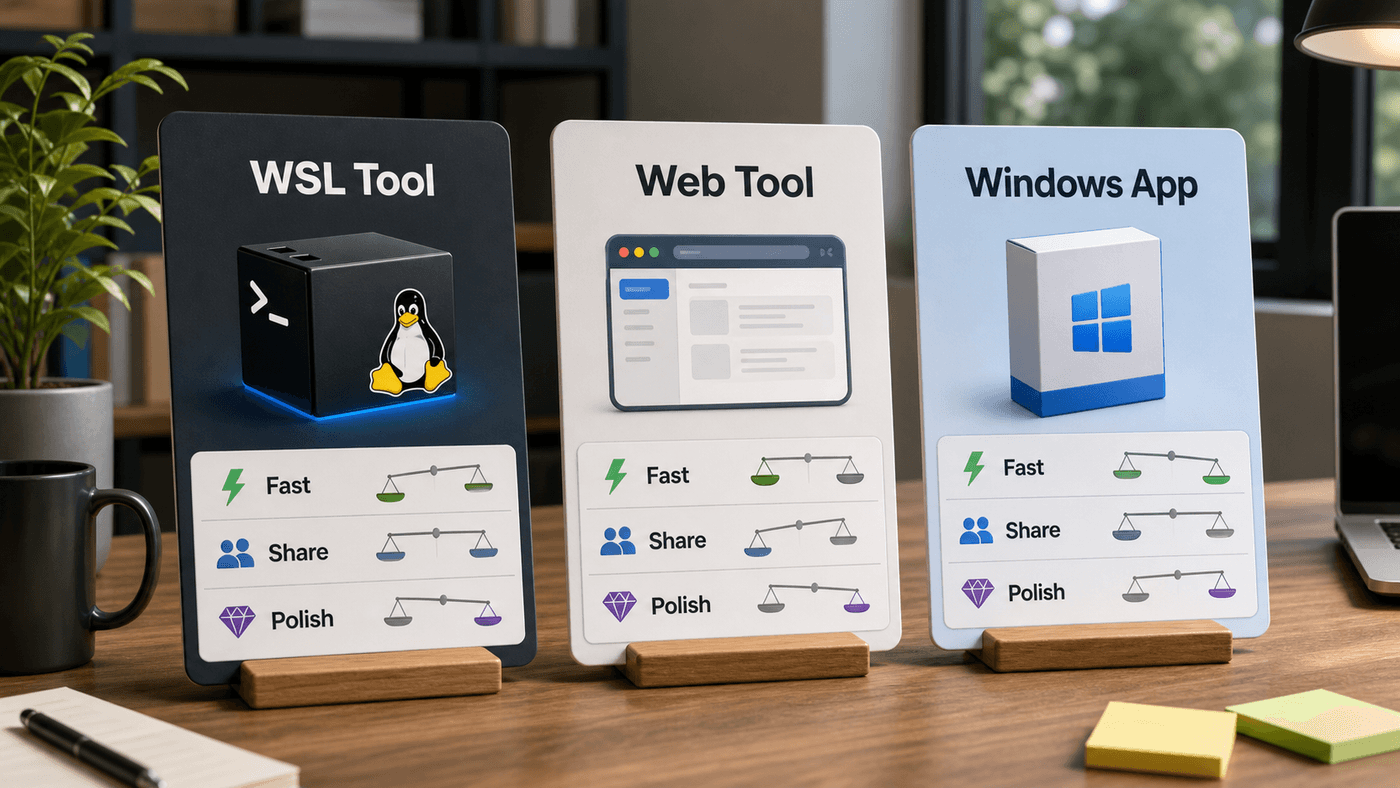
My rule is simple: for engineers only, WSL GUI is fine; for operations, finance, or product colleagues, prefer Web; for offline use, system integration, or long-term delivery, consider native Windows packaging. WSL GUI is a development efficiency tool, not the final form of every desktop app.
Debugging Checklist
When a GUI program does not start, I check in this order:
# 1. WSLg baseline
xeyes

# 2. Environment variables
echo "$DISPLAY"
echo "$WAYLAND_DISPLAY"

# 3. Python environment
which python
python -V
python -c "import PySide6; print('PySide6 ok')"

# 4. Shared libraries
ldd "$(python -c 'import PySide6, pathlib; import PySide6.QtCore as c; print(c.__file__)')" 2>/dev/null | head

# 5. Path
pwd
df -T .
If xeyes does not work, fix WSLg first.
If xeyes works but PySide6 does not, inspect Python packages.
If the program starts but processing is slow, check whether files live under /mnt/c.
Layered debugging is more useful than staring at a long traceback.
Summary
WSLg brings Linux GUI applications to the Windows desktop. For developers, its value is not turning Windows into a Linux desktop.
It is better for this workflow:
Write the core logic as a script first.
When the script is stable, add a small window.
The window selects files, shows progress, and opens results.
When more people need it, decide whether it should become Web or native Windows.
With that approach, GUI development inside WSL stays light and does not become another maintenance burden.
References
- Run Linux GUI apps on the Windows Subsystem for Linux - Microsoft Learn
- microsoft/wslg - GitHub
- Qt for Python Documentation
- GTK and Python - GTK Documentation
- Getting Started - PyGObject
Follow ZiCode on WeChat
If this post was useful, you can follow later updates on WeChat as well.

X / Twitter
Follow @ax2_zicode
Faster technical notes, short thoughts, and new-post alerts are posted on X.

More in this column
- Using WSL as Your Main Development Machine: Where Files and Tools Should Live
- WSL Disk Space Cleanup: VHDX, Docker, Model Caches, and What Actually Frees Space
- Docker in WSL: The Slow Part Is Usually the Mount Boundary
- WSL Is Not Just a Virtual Machine
- Using a Unix Workflow on Windows: grep, Pipes, and Scripts in Daily Work
- From X11 to Wayland: Why WSLg Is Not Just an X Server
- Opening Images with fim in WSL, Directly on the Windows Desktop