WSL Disk Space Cleanup: VHDX, Docker, Model Caches, and What Actually Frees Space
One of the easiest WSL problems to panic over is a suddenly full C drive.
You delete tens of gigabytes inside Ubuntu. df -h says space has been freed. Then you go back to Windows and the C drive has barely changed. The ext4.vhdx file is still huge.
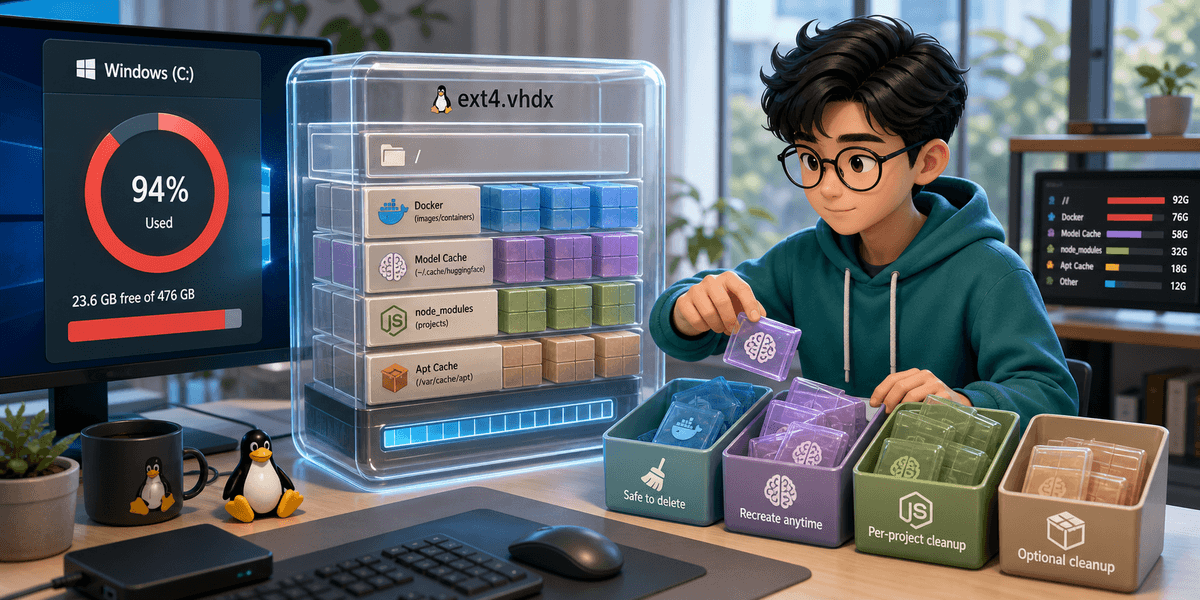
This is not an illusion. A WSL2 Linux filesystem is usually stored on Windows as a virtual disk file. Deleting files inside Linux creates free blocks inside that virtual disk. It does not necessarily shrink the VHDX file seen by Windows immediately.
This article follows a real firefighting path: the development machine had only 2 GB left on C drive, Docker inside WSL could not run, Node dependency installation failed, and local models could not be downloaded. The goal is not to show off obscure commands. It is to make clear what to inspect, what to delete, and how to confirm that space was actually recovered.
First, Separate Linux Free Space from Windows Free Space
Inside WSL, check:
df -hCheck the root filesystem:
df -h /Then inspect large directories:
du -h -d 1 ~ | sort -h
sudo du -h -d 1 /var | sort -h
If Docker is installed:
docker system dfIf you run local models:
du -sh ~/.cache ~/.ollama ~/models 2>/dev/nullThese commands answer one question: what is consuming space inside Linux?
On Windows, inspect the VHDX. For a default Microsoft Store Ubuntu installation, the path is usually under:
%LOCALAPPDATA%\Packages\CanonicalGroupLimited.Ubuntu...\LocalState\ext4.vhdxDifferent distributions have different package names. In PowerShell:
wsl -l -vThen look under %LOCALAPPDATA%\Packages for the matching distribution.
The key point: a smaller du result does not mean ext4.vhdx immediately becomes smaller.

Think of it as two ledgers. df and du inspect the ext4 filesystem from inside. Windows File Explorer sees the VHDX file that stores that filesystem. Deleting files in Linux creates reusable space inside the filesystem. To reclaim host disk space, you often need to stop WSL and compact the virtual disk.
Delete the Safest Things First
I start with low-risk caches.
apt cache:
sudo apt clean
sudo apt autoremove --purge -y
Python cache:
find ~ -type d -name '__pycache__' -prune -exec rm -rf {} +
find ~ -type d -name '.pytest_cache' -prune -exec rm -rf {} +
Do not blindly delete every node_modules. First find them:
fd -H '^node_modules$' ~/work -t d \
  | xargs -r du -sh \
  | sort -h
After confirming an old project no longer needs its dependencies:
rm -rf ~/work/old-project/node_modulesRust, Go, pnpm, Yarn, and npm caches are also common:
du -sh ~/.cargo ~/.cache/go-build ~/go/pkg/mod ~/.npm ~/.pnpm-store ~/.cache/yarn 2>/dev/nullDo not solve everything with rm -rf ~/.cache. Many caches can be rebuilt, but some contain login state, partially downloaded models, or build indexes. Inspect before deleting.
Docker Is a Space Sink, but Easy to Damage
Inspect Docker space separately:
docker system dfList images:
docker image lsList volumes:
docker volume lsRemove stopped containers, unused networks, and dangling images:
docker system pruneIf you are sure unused images can be removed:
docker system prune -aVolumes are dangerous. Many development databases store their data in volumes. Do not casually run:
docker volume pruneunless you have confirmed those volumes do not contain data you need.
I usually save a before-and-after report:
docker system df -v > docker-space-before.txtAfter cleanup:
docker system df -v > docker-space-after.txtIf something goes wrong, at least you know what was removed.
Give Local Model Caches a Home
AI development machines are easily filled by model caches.
Common locations:
du -sh ~/.cache/huggingface ~/.ollama ~/models 2>/dev/nullHugging Face:
export HF_HOME="$HOME/models/huggingface"
export TRANSFORMERS_CACHE="$HF_HOME/transformers"
export HF_DATASETS_CACHE="$HOME/datasets/huggingface"
Ollama:
du -sh ~/.ollama 2>/dev/null
ollama list
If a model is no longer needed, prefer the tool’s own command:
ollama rm qwen2.5:7bDo not randomly delete individual blobs from a model directory. Many model managers use content addressing, reference counts, or manifests. Manual deletion can leave a half-broken state.
For local AI projects, I like this directory convention:
~/models/       # model weights
~/datasets/     # datasets
~/runs/         # experiment outputs
~/archive/      # cleanup-friendly archive
Then check weekly:
du -h -d 1 ~/models ~/datasets ~/runs 2>/dev/null | sort -h
Disk cleanup should not only ask “which directory is largest?” Model caches may need recent versions. Docker images can often be rebuilt per project. node_modules is large but usually recoverable. apt cache is low risk. Once categories are clear, cleanup becomes much safer.
Why the Windows C Drive Does Not Shrink After Deletion
Because you have only made free blocks inside the ext4 filesystem. The VHDX file may still keep its previous size.
Microsoft’s WSL disk-space documentation describes virtual disk management. Newer WSL versions support:
wsl --manage <Distro> --resize <Size>But “resize capacity” and “return host disk space” are different operations. Resizing changes the virtual disk limit. Reclaiming host disk space makes the VHDX file smaller on Windows.
Before reclaiming, shut down WSL:
wsl --shutdownThen choose a method based on Windows and WSL versions.
Some environments can rely on sparse VHD support. Others need Optimize-VHD, which belongs to the Hyper-V module and is not available by default on every Windows edition.
If available:
Optimize-VHD -Path "C:\path\to\ext4.vhdx" -Mode FullBefore running it, confirm that the path is the correct distribution’s VHDX and WSL has been shut down.
If the command is not available, the conservative but riskier route is export and re-import:
wsl --export Ubuntu D:\backup\ubuntu.tar
wsl --unregister Ubuntu
wsl --import Ubuntu D:\WSL\Ubuntu D:\backup\ubuntu.tar --version 2
This path is riskier because --unregister deletes the original distribution. Before doing it, confirm the export is valid, you have a backup, and you know how to restore. Do not try this for the first time at midnight with zero bytes left on C drive.
A Small Inspection Script
I keep a ~/bin/wsl-space-report:
#!/usr/bin/env bash
set -euo pipefail

echo "== filesystem =="
df -h /
echo

echo "== home top =="
du -h -d 1 "$HOME" 2>/dev/null | sort -h | tail -20
echo

echo "== work node_modules =="
fd -H '^node_modules$' "$HOME/work" -t d 2>/dev/null \
  | xargs -r du -sh \
  | sort -h \
  | tail -20
echo

echo "== model caches =="
du -sh "$HOME/.cache/huggingface" "$HOME/.ollama" "$HOME/models" "$HOME/datasets" 2>/dev/null || true
echo

if command -v docker >/dev/null 2>&1; then
  echo "== docker =="
  docker system df || true
fi
Make it executable:
chmod +x ~/bin/wsl-space-reportWhen C drive turns red, run this first. Do not delete by instinct.
My Cleanup Order
My usual order:
- Run
wsl-space-reportto find the largest contributors. - Clean apt, Python, and test caches.
- Remove
node_modulesand.venvfrom abandoned projects. - Inspect images and volumes with
docker system df -v. - Remove unused models.
- Archive
~/runsand large datasets. - Run
wsl --shutdown. - Compact or migrate the VHDX only when needed.
Do not start by compacting the VHDX. If internal junk remains, compacting is meaningless.
When to Rebuild a Clean Distribution
If a WSL distribution has been used for two or three years and now contains countless projects, old language runtimes, abandoned databases, scattered models, and half-broken Docker volumes, rebuilding may be better than cleaning.
Export the old distribution:
wsl --export Ubuntu D:\backup\ubuntu-old.tar
wsl --install -d Ubuntu
Then migrate only:
- still-maintained projects under
~/work; - explicitly needed configs such as
.sshand.gnupg; - dotfiles;
- required models and data;
- utility scripts.
Rebuilding is not giving up. It is clearing years of temporary state.
Summary
WSL disk problems are easy to misread because there are two spaces:
Linux free space.
The VHDX file size seen by Windows.
Cleanup should first identify the real consumers inside Linux. Then decide whether to remove caches, dependencies, images, models, or archived data. Once the inside is clean, consider reclaiming VHDX space.
Do not treat “C drive is full” as a single isolated issue. It usually reflects development habits: where projects live, how Docker is used, how model caches are managed, and whether old experiment output is archived.
References
- How to manage WSL disk space - Microsoft Learn
- Basic commands for WSL - Microsoft Learn
- Advanced settings configuration in WSL - Microsoft Learn
- Docker Desktop WSL 2 backend
Follow ZiCode on WeChat
If this post was useful, you can follow later updates on WeChat as well.

X / Twitter
Follow @ax2_zicode
Faster technical notes, short thoughts, and new-post alerts are posted on X.

More in this column
- AI Development in WSL: GPU, CUDA, Model Caches, and File IO
- Using WSL as Your Main Development Machine: Where Files and Tools Should Live
- Docker in WSL: The Slow Part Is Usually the Mount Boundary
- WSL Is Not Just a Virtual Machine
- Developing Linux GUI Apps in WSL: From Script Windows to Maintainable Tools
- Using a Unix Workflow on Windows: grep, Pipes, and Scripts in Daily Work